✓ A smart home hub acts as the central brain for your smart devices, enabling them to communicate.
✓ Choosing the right hub depends on your existing devices, preferred ecosystems, and technical comfort.
✓ Network stability (Wi-Fi) is crucial for a reliable smart home hub setup and performance.
✓ Security considerations are paramount when connecting multiple devices to a central hub.
How It Works
1
Choose Your Hub & Location
Select a hub compatible with your devices and place it centrally to ensure optimal signal coverage. Consider proximity to your router for wired connections.
2
Connect & Power On
Plug in your hub, connect it to your home network (ethernet or Wi-Fi), and wait for it to boot up. Follow the initial on-screen or app-based prompts.
3
Install App & Account Setup
Download the manufacturer's dedicated app to your smartphone or tablet. Create an account and follow instructions to register your new smart home hub.
4
Add Devices & Automate
Use the app to discover and pair your smart devices one by one. Once connected, create routines and scenes to automate actions based on your preferences.
Understanding the Core: What is a Smart Home Hub?
Photo: Jonathan Borba / Pexels
Before diving into the specifics of how to set up a smart home hub, it's crucial to understand its fundamental role within your connected ecosystem. Imagine your smart home as an orchestra, with various instruments (lights, thermostats, locks, cameras) playing different parts. Without a conductor, each instrument might play its own tune, resulting in chaos. A smart home hub is that conductor. It's a central device that facilitates communication between all your disparate smart gadgets, even if they use different communication protocols like Wi-Fi, Bluetooth, Zigbee, or Z-Wave. Without a hub, you might find yourself juggling multiple apps, each controlling a single device or a small subset of devices. A hub consolidates control, allowing you to manage everything from a single interface, whether it's an app on your phone, a voice command to a smart speaker, or a physical control panel. Beyond mere consolidation, hubs unlock the true potential of smart homes: automation. They enable devices to interact with each other in sophisticated ways, creating 'routines' or 'scenes.' For example, when your smart lock disarms, your hub can tell your smart lights to turn on and your smart thermostat to adjust the temperature. This level of interconnectedness transforms a collection of smart devices into a truly intelligent, responsive home. Different hubs offer varying levels of integration and support for different protocols, which is a key consideration when making your selection. Some are purely software-based, residing within a smart speaker like an Amazon Echo or Google Nest, while others are dedicated hardware units. The choice often depends on your existing smart devices and your long-term automation goals. Understanding this foundational concept is the first, most important step in how to set up a smart home hub effectively, ensuring you build a cohesive and functional smart environment rather than a collection of isolated gadgets. It’s about creating a unified experience, simplifying your daily interactions, and enhancing the overall intelligence of your living space. For more on the foundational aspects, consider exploring the basics of home automation.
Choosing the Right Hub for Your Connected Home
Photo: Andrey Matveev / Pexels
The market for smart home hubs is diverse, offering a range of options from simple smart speakers with integrated hub capabilities to dedicated, feature-rich hardware. Making the right choice is paramount to a successful setup, as it dictates compatibility, functionality, and ease of use. The first factor to consider is protocol compatibility. Do you primarily own Wi-Fi devices, or do you have a mix of Zigbee, Z-Wave, or Bluetooth gadgets? Some hubs are multi-protocol, meaning they can speak to devices using various wireless languages, offering greater flexibility. Others are more specialized. For instance, Amazon Echo devices and Google Nest Hubs excel at voice control and integrating with their respective ecosystems, often supporting Wi-Fi and Bluetooth, with some models adding Zigbee. Dedicated hubs like SmartThings or Hubitat, on the other hand, are renowned for their broad support for Zigbee and Z-Wave, making them excellent choices for users with a wide array of device types and a desire for robust local control and advanced automation. Your existing smart devices are a critical starting point. List them out and check their communication protocols. Then, research which hubs are officially compatible. Don't forget about your preferred voice assistant – if you're heavily invested in Alexa or Google Assistant, choosing a hub that integrates seamlessly with them will enhance your experience. Beyond compatibility, consider the level of control and automation you desire. Do you want simple 'if this, then that' routines, or are you looking for complex, multi-trigger automations with custom scripting capabilities? Some hubs offer a more user-friendly, app-driven interface, while others cater to power users seeking granular control. Budget is another practical consideration, as prices vary significantly. Finally, think about local control. While many hubs rely on cloud services, some offer the ability to process commands and run automations locally, meaning your smart home can still function even if your internet goes down. This adds a layer of reliability and privacy. Carefully evaluating these factors will guide you toward the best smart home hub for your specific needs, ensuring a smooth and powerful setup process.
Step-by-Step Installation: How to Set Up a Smart Home Hub Like a Pro
Photo: cottonbro studio / Pexels
Once you've chosen your smart home hub, the installation process begins. While specific steps may vary slightly depending on the brand and model, the general flow remains consistent. This detailed guide will walk you through how to set up a smart home hub effectively.
**1. Unboxing and Initial Placement:** Carefully unbox your new smart home hub. Identify all components, including the hub itself, power adapter, and any included Ethernet cables. The placement of your hub is crucial for optimal performance. Choose a central location in your home, away from large metal objects, microwaves, and other sources of interference. Ideally, it should be within a reasonable range of most of your smart devices and your Wi-Fi router. If your hub uses a wired Ethernet connection, ensure it's close enough to your router or a network switch.
**2. Power Up and Network Connection:** Plug the power adapter into the hub and then into a wall outlet. Many hubs will have indicator lights that illuminate to show they are powering on. If your hub supports an Ethernet connection, plug one end of the Ethernet cable into the hub's LAN port and the other end into an available LAN port on your Wi-Fi router. For Wi-Fi-only hubs, you'll typically configure the Wi-Fi connection later through the mobile app. Allow the hub a few minutes to fully boot up and establish its initial connection.
**3. Download the Companion App and Account Setup:** Search for the hub's official companion app in your smartphone's app store (Google Play Store for Android, Apple App Store for iOS). Download and install it. Once installed, open the app and follow the prompts to create a new account or log in if you already have one. This account will be your central point of control for your smart home ecosystem.
**4. Discovering and Connecting Your Hub:** Within the app, there will usually be an option to 'Add Device' or 'Set Up New Hub.' Select this option. The app will then guide you through the process of discovering your newly powered-on hub. For Wi-Fi hubs, you may need to temporarily connect your phone to a temporary Wi-Fi network broadcast by the hub or enter your home Wi-Fi credentials into the app. For Ethernet-connected hubs, discovery is often more automatic. Follow any on-screen instructions, which might include scanning a QR code on the hub or entering a serial number.
**5. Firmware Updates and Initial Configuration:** Once your hub is successfully connected and registered, the app may prompt you to perform a firmware update. It's highly recommended to do this immediately, as updates often include critical security patches and performance improvements. After updates, you can begin initial configuration, such as naming your hub, setting your location, and configuring time zones.
**6. Adding Your Smart Devices:** This is where your smart home truly comes to life. In the hub's app, look for an 'Add Device' or 'Pair Device' option. Select the type of device you want to add (e.g., smart light, smart plug, door sensor). Follow the app's instructions, which typically involve putting your smart device into 'pairing mode' (often by power cycling it a few times or holding a button). The hub will then discover and connect to the device. Repeat this process for all your smart devices.
**7. Creating Rooms, Scenes, and Automations:** With your devices added, you can now organize them into rooms within the app for easier management. Then, explore creating 'scenes' (e.g., 'Movie Night' scene that dims lights and turns on the TV) and 'automations' or 'routines' (e.g., 'Turn on porch light at sunset,' 'Unlock door when I arrive home'). This is the core benefit of a smart home hub and where you'll spend most of your time customizing your experience.
**8. Testing and Troubleshooting:** After setting up automations, test them thoroughly to ensure they work as expected. If a device isn't responding or an automation isn't triggering, check the device's power, network connection, and the hub's app for any error messages. Sometimes, a simple reboot of the hub or device can resolve issues. For more advanced troubleshooting, consulting the hub's online documentation or community forums can be invaluable. Mastering how to set up a smart home hub involves patience and attention to detail, but the rewards of a truly intelligent home are well worth the effort. For deeper dives into specific device pairing, refer to smart device compatibility guides.
Common Pitfalls and Pro Tips for Smart Home Hub Success
Photo: https://kaboompics.com/ / Pexels
Even with a clear understanding of how to set up a smart home hub, users can encounter common pitfalls. Being aware of these and knowing some pro tips can save you time and frustration, ensuring a smoother, more reliable smart home experience.
**Common Pitfalls:**
* **Ignoring Network Stability:** Many smart devices and hubs rely heavily on a stable Wi-Fi network. A weak or congested Wi-Fi signal can lead to devices going offline, slow response times, and failed automations. Ensure your router is up to the task and consider a mesh Wi-Fi system for larger homes.
* **Incompatible Devices:** One of the biggest frustrations is buying a smart device only to find it doesn't work with your chosen hub. Always double-check compatibility lists before purchasing any new gadget.
* **Overlooking Firmware Updates:** Manufacturers frequently release firmware updates for hubs and devices to improve performance, add features, and patch security vulnerabilities. Skipping these can lead to instability or missed functionality.
* **Poor Placement:** Placing your hub in a closet, behind a TV, or in a corner of your house can severely limit its range and effectiveness, particularly for Zigbee and Z-Wave devices which create a mesh network.
* **Over-reliance on Cloud Services:** While convenient, cloud-dependent setups can fail when your internet goes down. Some hubs offer local control options, which are more resilient.
**Pro Tips for Success:**
* **Start Small and Expand:** Don't try to automate your entire home on day one. Start with a few key devices and simple automations. Get comfortable with the system, then gradually expand.
* **Organize Your Devices:** Use the hub's app to group devices by room, type, or function. This makes management much easier, especially as your smart home grows.
* **Leverage Voice Assistants:** Integrate your smart home hub with Alexa or Google Assistant for convenient voice control. This adds a layer of accessibility and ease of use.
* **Regularly Review Automations:** As your habits change or new devices are added, your automations might need tweaking. Periodically review and refine them to ensure they still meet your needs.
* **Implement Strong Security:** Change default passwords, enable two-factor authentication for your hub account, and use a strong, unique password for your Wi-Fi network. Smart home security is as important as physical security.
* **Backup Your Configurations (if available):** Some advanced hubs allow you to back up your entire configuration. This can be a lifesaver if you ever need to reset your hub or migrate to a new one.
* **Monitor Device Health:** Pay attention to battery levels for battery-powered devices and regularly check device status in your hub's app to catch issues before they become problems.
* **Join Community Forums:** Online communities for specific hubs (e.g., SmartThings community, Hubitat forum) are invaluable resources for troubleshooting, sharing ideas, and discovering new automations.
By being proactive about these potential issues and adopting these best practices, you'll not only master how to set up a smart home hub, but also ensure its long-term reliability and enjoyment.
Comparison
Feature
Samsung SmartThings
Hubitat Elevation
Amazon Echo (Plus/Show)
Google Nest Hub Max
Primary Protocols
Zigbee, Z-Wave, Wi-Fi
Zigbee, Z-Wave, Wi-Fi
Wi-Fi, Bluetooth, (some Zigbee)
Wi-Fi, Bluetooth, (some Thread)
Local Processing
Partial (Cloud-dependent)
Extensive (Local)
Limited (Cloud-dependent)
Limited (Cloud-dependent)
Voice Assistant
Alexa, Google Assistant
Alexa, Google Assistant
Alexa Built-in
Google Assistant Built-in
Custom Automation
Good (Rules API, WebCoRE)
Excellent (Rule Machine)
Basic (Routines)
Basic (Routines)
Ease of Use
Moderate
Advanced
High
High
Dedicated Hardware
✓
✓
✗
✗
Screen Interface
✗
✗
✓
✓
What Readers Say
★★★★★
"Following this guide on how to set up a smart home hub made the process so much less intimidating. I chose the SmartThings hub, and it works flawlessly with all my disparate devices now. Everything is finally connected!"
Sarah J. · Austin, TX
★★★★★
"The detailed instructions in this article were a lifesaver. I had my Hubitat Elevation up and running in under an hour, and now my lights and thermostat are perfectly in sync. Truly a comprehensive resource."
Mark P. · Seattle, WA
★★★★★
"I was overwhelmed by all the options, but this guide helped me pick the right hub and confidently set it up. My smart home used to be a mess of apps; now, it's a seamless automated experience. Highly recommend reading before you start."
Emily R. · Denver, CO
★★★★★
"The article provided excellent guidance on how to set up a smart home hub. I found the section on troubleshooting particularly useful, as I initially had some issues with device discovery. My only minor critique is that some of the advanced automation tips could have been expanded further."
David L. · Boston, MA
★★★★★
"As someone who isn't super tech-savvy, I really appreciated the step-by-step breakdown. I managed to get my smart home hub connected and even set up my first automation scene without any major headaches. My mornings are now so much smoother!"
Jessica M. · Miami, FL
Frequently Asked Questions
What is the primary benefit of knowing how to set up a smart home hub?
The primary benefit is achieving true home automation and centralized control. Instead of managing individual smart devices with separate apps, a hub allows them to communicate with each other, enabling complex routines, enhanced security, and a unified control experience from a single interface or voice command.
Is setting up a smart home hub difficult for a beginner?
While it involves a few more steps than just plugging in a smart bulb, modern smart home hubs are designed with user-friendliness in mind. This guide breaks down the process into manageable steps, making it achievable for beginners. Patience and following instructions are key.
How do I connect my existing smart devices to a new hub?
Generally, you will use the hub's companion app. After the hub is set up, look for an 'Add Device' or 'Pair Device' option. The app will then guide you to put your specific smart device into 'pairing mode' (often by power cycling or holding a button) so the hub can discover and connect to it.
Are smart home hubs expensive, and are they worth the cost?
Smart home hubs vary in price, from under $100 for basic models to several hundred for advanced multi-protocol hubs. Their value comes from unlocking advanced automation, unifying control, and often improving the reliability of your smart devices. For a truly integrated smart home, they are generally considered a worthwhile investment.
How does a smart home hub differ from a smart speaker like Amazon Echo?
While many smart speakers (especially higher-end models) have some hub capabilities (e.g., Zigbee radio), a dedicated smart home hub typically offers broader protocol support (like Z-Wave), more robust local processing, and greater flexibility for complex automations. Smart speakers excel at voice control and basic routines, while dedicated hubs are built for comprehensive system management.
Who should consider setting up a smart home hub?
Anyone with multiple smart devices from different brands or using different communication protocols will benefit greatly from a smart home hub. It's ideal for those seeking to create complex automations, improve device reliability, or simply consolidate control into a single, intuitive interface.
What are the security risks associated with smart home hubs?
The main risks involve unauthorized access if not properly secured. This includes weak passwords, unpatched firmware, and exposing your hub to the public internet without proper firewall rules. Always use strong, unique passwords, enable two-factor authentication, and keep your hub's firmware updated to mitigate these risks.
What's the future trend for how to set up a smart home hub?
The future points towards greater interoperability, largely driven by standards like Matter and Thread. This aims to simplify the setup process further, making devices from different manufacturers work together more seamlessly, potentially reducing the need for multiple hubs and simplifying the 'how to set up a smart home hub' question for consumers.
Ready to take control of your home's intelligence? Use this comprehensive guide on how to set up a smart home hub to transform your living space into a truly connected and automated environment. Start building your smart home today!

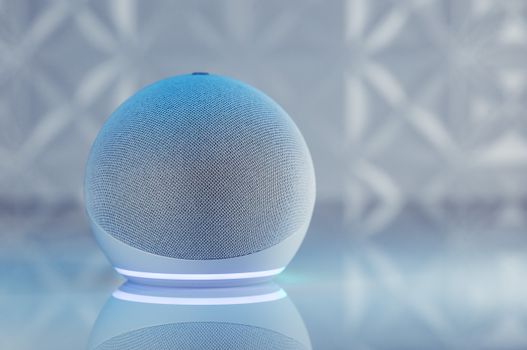 Photo: Jonathan Borba / Pexels
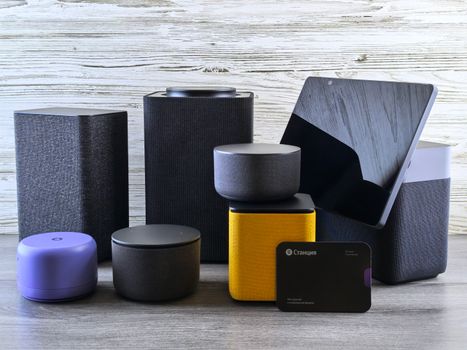 Photo: Andrey Matveev / Pexels
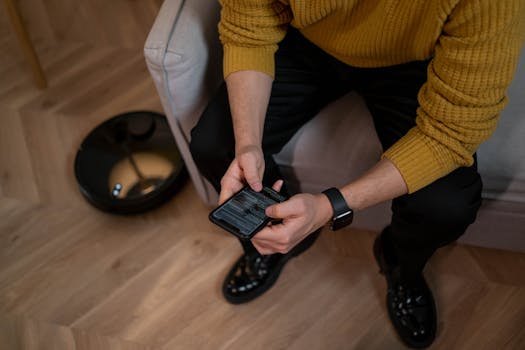 Photo: cottonbro studio / Pexels
 Photo: https://kaboompics.com/ / Pexels