How to Fix Slow Computer Performance: The Ultimate Guide
Unleash your computer's full potential with our expert-backed strategies for a faster, smoother experience.
Start Speeding Up NowKey Takeaways
- ✓ A slow computer often stems from software, not just hardware.
- ✓ Regular maintenance can prevent up to 70% of performance issues.
- ✓ Identifying the bottleneck (CPU, RAM, Disk) is crucial for effective fixes.
- ✓ Many solutions are free and can be done by anyone.
How It Works
Pinpoint exactly when and how your computer is slowing down. Is it during startup, while browsing, or running specific applications? This helps narrow down potential causes.
Utilize built-in tools like Task Manager or Activity Monitor to identify resource-hogging programs. Check for recent software installations or updates that might be causing conflicts.
Address software-related issues by removing unnecessary programs, clearing temporary files, and optimizing startup processes. This is often the quickest way to see improvements.
If software optimization isn't enough, evaluate potential hardware bottlenecks. Upgrading RAM or switching to an SSD can dramatically improve overall system responsiveness.
Understanding the Root Causes of Slow Performance
 Photo: Gustavo Fring / Pexels
One of the most common reasons for a slowdown is an overloaded startup. Every time you power on your computer, numerous programs try to launch themselves in the background. While some are essential, many are not, consuming valuable RAM and CPU cycles before you even open an application. This creates a bottleneck right from the start, making your entire system feel sluggish. Similarly, a hard drive that's nearly full, especially if it's an older HDD (Hard Disk Drive) rather than a faster SSD (Solid State Drive), can significantly impede performance. The operating system needs ample free space to function efficiently, create temporary files, and manage virtual memory. When this space is scarce, everything grinds to a halt.
Another major factor is outdated or corrupted software and drivers. Software applications, including your operating system, receive updates not just for new features but also for performance improvements and bug fixes. Neglecting these updates can lead to inefficiencies, security vulnerabilities, and compatibility issues that manifest as slow performance. Conversely, a corrupt driver for a critical component like your graphics card or network adapter can cause system instability and slowdowns. Malware, viruses, and other unwanted programs are insidious performance killers. They often run in the background, consuming resources, tracking your activity, and sometimes even intentionally crippling your system. Regular scans with reputable antivirus software are non-negotiable.
Finally, hardware limitations play a significant role. If your computer is several years old, its components might simply not be able to keep up with modern software demands. Insufficient RAM (Random Access Memory) means your computer constantly has to swap data to the slower hard drive, a process known as 'paging', which severely impacts speed. An aging CPU (Central Processing Unit) will struggle with complex tasks, and a traditional HDD will always be slower than an SSD for data access. Understanding these fundamental causes is the first step towards an effective diagnosis and implementing the right solutions to optimize your computer's speed. Don't despair; most issues are fixable!
Software Solutions: Decluttering and Optimizing Your System
 Photo: Christina Morillo / Pexels
Next, focus on uninstalling unused programs. Over time, we accumulate software we no longer need or use. These programs not only take up valuable disk space but can also leave behind residual files, background processes, or scheduled tasks that consume resources. On Windows, use 'Add or Remove Programs' in the Control Panel or Settings. On macOS, simply drag applications from your Applications folder to the Trash. For a more thorough removal, consider using a third-party uninstaller that can clean up associated files and registry entries.
Disk cleanup is another critical step. Temporary files, system logs, browser caches, and recycle bin contents can accumulate to gigabytes of wasted space, especially on your primary drive. Windows has a 'Disk Cleanup' utility (search for it in the Start menu), which can identify and remove these files safely. macOS users can use the 'Optimize Storage' feature found in About This Mac > Storage > Manage. Regularly performing this cleanup frees up space and helps your operating system run more smoothly. Also, ensure your operating system and all installed applications are up to date. Software developers frequently release patches that include performance enhancements and bug fixes. Keeping everything current ensures you benefit from these improvements and reduces potential compatibility issues.
Finally, a thorough malware scan is essential. Even if you have antivirus software, it’s good practice to run a full system scan periodically. Modern malware is sophisticated and can evade detection, silently consuming your system's resources. If your current antivirus isn't catching anything, consider a second opinion scan with a different reputable tool, such as Malwarebytes. These software solutions are your first line of defense against a sluggish system and often provide the biggest bang for your buck in terms of performance improvement without spending a dime.
Hardware Enhancements: When Software Isn't Enough
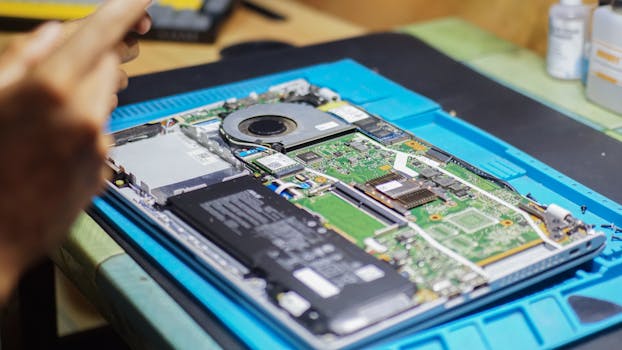 Photo: Found GHI / Pexels
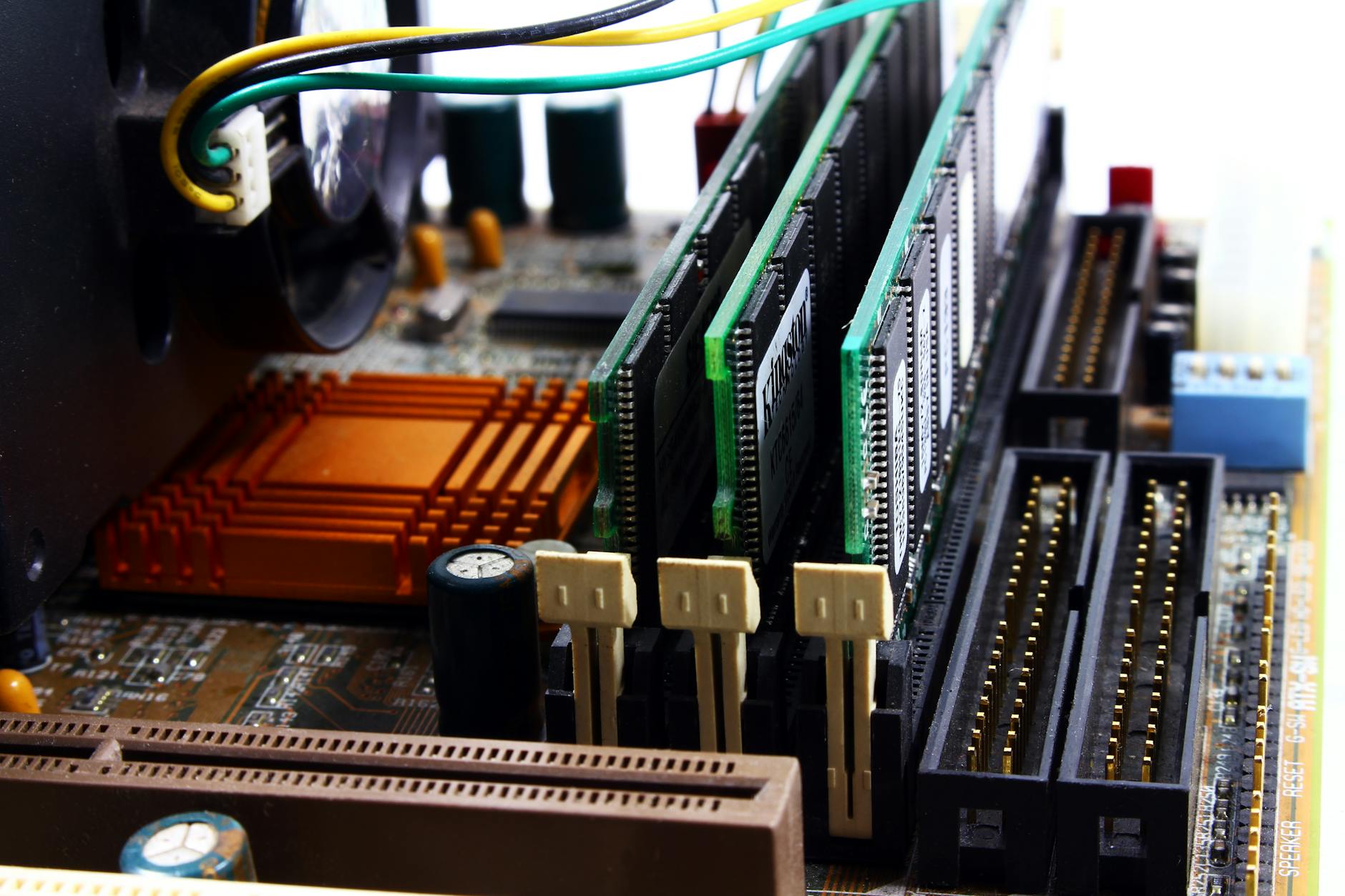
RAM, or Random Access Memory, is your computer's short-term memory. The more RAM you have, the more applications and data your computer can handle simultaneously without having to rely on slower storage. If you frequently multitask, open many browser tabs, or use demanding applications like video editing software or complex games, insufficient RAM will severely hamper your experience. Most modern computers can benefit significantly from 8GB to 16GB of RAM, with 32GB being ideal for power users. Check your current RAM usage via Task Manager (Windows) or Activity Monitor (macOS) to see if it's consistently maxed out. Upgrading RAM is typically a straightforward process, involving purchasing compatible memory sticks and slotting them into available motherboard slots. It's one of the easiest and most cost-effective ways to immediately improve responsiveness.
The single most dramatic upgrade you can make to an older computer, especially one still using a traditional Hard Disk Drive (HDD), is to switch to a Solid State Drive (SSD). HDDs rely on spinning platters and read/write heads, making them inherently slower for data access. SSDs, on the other hand, use flash memory, offering exponentially faster boot times, application loading, and file transfers. The difference in daily use is profound. If your operating system is installed on an HDD, upgrading to an SSD will make your entire system feel incredibly snappier. You can either replace your existing HDD with an SSD and perform a clean install of your OS, or 'clone' your existing drive's contents to the new SSD. Even if you can only afford a smaller SSD for your operating system and frequently used applications, it will provide a massive performance boost. Consider an SSD as a foundational upgrade for any slow computer.
Other hardware considerations include upgrading your graphics card for gaming or professional visual tasks, or even a CPU upgrade if your motherboard supports it and your current processor is truly outdated. However, RAM and SSD upgrades offer the best performance-to-cost ratio for general computer speed. Before investing in new hardware, always ensure compatibility with your existing system and consider seeking professional help if you're uncomfortable with the installation process. These upgrades can truly transform a frustratingly slow machine into a highly capable one, saving you money and extending your computer's lifespan. Remember, a well-chosen hardware upgrade can profoundly enhance your digital experience.
Advanced Troubleshooting and Prevention Strategies
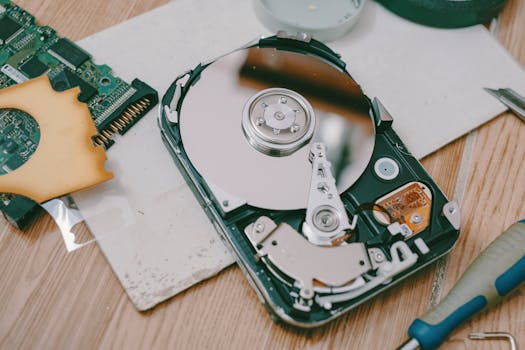 Photo: FOX ^.ᆽ.^= ∫ / Pexels
Regular disk defragmentation (for HDDs only) is another crucial maintenance step. As files are saved, deleted, and modified on an HDD, they can become fragmented, meaning parts of a single file are scattered across different sectors of the disk. This forces the read/write head to work harder, slowing down access times. Windows has a built-in 'Defragment and Optimize Drives' tool that can schedule and perform this task. **Important Note:** SSDs do not need defragmentation; in fact, defragmenting an SSD can reduce its lifespan. For SSDs, ensure TRIM is enabled, which helps the drive manage unused data blocks efficiently.
Monitoring your system for overheating is also vital. Excessive heat can cause your CPU and GPU to 'throttle' their performance to prevent damage, resulting in significant slowdowns. Ensure your computer's fans are clean and unobstructed. Use monitoring software (like HWMonitor or Core Temp) to keep an eye on component temperatures. If temperatures are consistently high, consider cleaning out dust from inside your computer, improving airflow, or even replacing thermal paste on your CPU. Another powerful tool for advanced users is the Event Viewer in Windows or Console on macOS. These logs can provide critical clues about system errors, application crashes, or driver conflicts that might be contributing to performance issues.
Finally, the best fix is prevention. Implement a routine maintenance schedule that includes regular software updates, antivirus scans, temporary file cleanups, and backup procedures. Consider using cloud storage or external drives to offload large files from your primary drive. Be mindful of what programs you install and always download software from reputable sources. A proactive approach to computer care will significantly reduce the likelihood of encountering frustrating slowdowns, keeping your machine running like new for longer.
Comparison
| Feature | SSD | HDD | More RAM | CPU Upgrade |
|---|---|---|---|---|
| Speed Boost | Excellent | Minimal | Very Good | Good (task-dependent) |
| Cost | Medium | Low | Low-Medium | High |
| Installation Difficulty | Medium | Easy | Easy | Hard |
| Boot Time Impact | ✓ | ✗ | ✓ | ✗ |
| Application Load Time | ✓ | ✗ | ✓ | ✗ |
| General Responsiveness | ✓ | ✗ | ✓ | ✗ |
What Readers Say
"My laptop was painfully slow, constantly freezing. Following the steps on how to fix slow computer performance, especially the SSD upgrade, made it feel like a brand new machine. Incredible difference!"
Sarah J. · Austin, TX"I thought I needed a new desktop, but after clearing startup programs and running a deep malware scan as suggested, my computer is flying again. This guide saved me hundreds of dollars!"
Michael D. · Chicago, IL"The advice on upgrading RAM was spot-on. My video editing software used to crash constantly, but with more memory, I can finally work without interruptions. Definitely how to fix slow computer performance effectively."
Emily R. · Seattle, WA"Most of the software tips were helpful, especially the disk cleanup. My computer is faster, though I still think an SSD might be in my future for that ultimate speed boost. Good starting point."
David L. · Miami, FL"As a student, a slow computer is a nightmare. This guide on how to fix slow computer performance gave me actionable steps that I could do myself. My old laptop is now perfectly capable for my studies."
Jessica T. · Denver, COFrequently Asked Questions
What is the single most effective way to fix slow computer performance?
While multiple factors contribute, upgrading from a traditional Hard Disk Drive (HDD) to a Solid State Drive (SSD) is almost universally the most impactful upgrade for overall system responsiveness, boot times, and application loading speeds. It often makes an older computer feel brand new.
Will cleaning my computer's registry speed it up?
Registry cleaners are generally not recommended for speeding up a computer. Modern operating systems manage the registry efficiently, and improper cleaning can lead to system instability or even render your computer unbootable. Focus on the other methods outlined in this guide instead.
How do I check what's slowing down my computer in real-time?
On Windows, open Task Manager (Ctrl+Shift+Esc) and go to the 'Processes' or 'Performance' tab to see CPU, RAM, Disk, and Network usage. On macOS, use Activity Monitor (found in Applications > Utilities). These tools will show you which applications or processes are consuming the most resources.
Is it worth spending money on upgrades, or should I just buy a new computer?
For many users, upgrading RAM and/or switching to an SSD can provide a significant performance boost for a fraction of the cost of a new computer, extending its lifespan by several years. If your computer is very old (8+ years) or has multiple failing components, a new machine might be more cost-effective in the long run.
How does a slow internet connection affect computer performance?
While your internet speed doesn't directly impact your computer's internal processing power, a slow connection can make your computer *feel* slow when browsing the web, streaming, or downloading. It can create bottlenecks for online applications, making it seem like your computer is struggling when it's actually waiting for data.
Who should follow these steps to fix slow computer performance?
Anyone experiencing a sluggish or unresponsive computer, whether it's an older desktop or a newer laptop that's started to drag. These steps are designed for average users and tech enthusiasts alike, aiming to improve productivity and enjoyment of their devices.
Are there any risks associated with trying to fix a slow computer myself?
Most software-based fixes carry minimal risk if you follow instructions carefully. Hardware upgrades, however, require some technical comfort. Always back up your data before making significant changes, and if you're unsure, consult a professional to avoid potential damage.
What are the future trends in computer performance optimization?
Future trends include more efficient operating systems, AI-driven resource management, even faster and denser storage technologies (like NVMe SSDs), and continued advancements in cloud computing to offload local processing. These innovations aim for seamless, instant performance across all devices.
Don't let a slow computer hold you back any longer. By implementing these expert strategies on how to fix slow computer performance, you can reclaim your productivity and enjoy a faster, more efficient digital life. Start optimizing your system today and experience the difference.