How to Fix Slow Computer Performance: Your Ultimate Guide
how to fix slow computer performance

How to Fix Slow Computer Performance: Your Ultimate Guide

Transform your sluggish machine into a productivity powerhouse with our expert, easy-to-follow optimization strategies.

Boost Your PC Now

Key Takeaways

  • ✓ Over 70% of computer slowness is software-related, not hardware.
  • ✓ Regular maintenance can extend your computer's lifespan by several years.
  • ✓ A full system scan for malware should be performed at least monthly.
  • ✓ Upgrading RAM is often the most cost-effective hardware upgrade for speed.

How It Works

1
Identify the Root Cause

Before diving into solutions, pinpoint whether the issue is software, hardware, or network-related. Task Manager (Windows) or Activity Monitor (Mac) are your first tools.

2
Clean Up Software Clutter

Uninstall unnecessary programs, clear temporary files, and manage startup applications. A lean system runs significantly faster and more efficiently.

3
Optimize System Settings

Adjust power settings, visual effects, and update your operating system and drivers. These small tweaks can have a big impact on overall performance.

4
Consider Hardware Upgrades

If software fixes aren't enough, evaluate RAM or SSD upgrades. These are often the most impactful hardware changes for a noticeable speed boost.

Unmasking the Culprit: Diagnosing Your Slow Computer

An auto mechanic in blue coveralls inspecting a car's engine in a garage. Photo: Gustavo Fring / Pexels
The first and most crucial step in learning how to fix slow computer performance is to accurately diagnose the underlying problem. Without proper diagnosis, you might spend hours implementing solutions that don't address the core issue, leading to frustration and wasted effort. A slow computer can stem from a myriad of sources, ranging from software bloat and malware infections to outdated drivers and even failing hardware components. Understanding these potential causes is paramount to applying the correct remedies. Start by observing *when* your computer slows down. Does it happen immediately upon startup, during specific applications, or intermittently throughout the day? If it's slow from the moment you power it on, the problem might lie with too many startup programs, a fragmented hard drive, or even a slow boot drive itself. If it slows down when using a particular program, that application could be a resource hog, or your system might lack the necessary RAM or processing power to run it efficiently. Intermittent slowdowns can often point towards background processes, network issues, or even overheating components. For Windows users, the Task Manager (Ctrl+Shift+Esc) is an invaluable tool. It provides a real-time snapshot of your CPU, memory, disk, and network usage. Pay close attention to the 'Processes' tab to identify which applications or background services are consuming the most resources. Sorting by CPU or Memory usage will quickly highlight any rogue programs. Similarly, Mac users have the Activity Monitor (found in Applications > Utilities), which offers comparable insights into system resource consumption. These tools can help you identify if a specific application, like a web browser with too many tabs open, a video editing suite, or even an antivirus scan, is the primary reason for the slowdown. Don't forget to check the 'Performance' tab in Task Manager or the 'Memory' and 'Disk' tabs in Activity Monitor to see if any hardware resource is consistently maxed out, which could indicate a bottleneck. For network-related slowdowns, observe the 'Network' tab to see if excessive data transfer is occurring. Sometimes, simply identifying a runaway process and ending it can provide immediate relief. However, be cautious when ending processes; always research unfamiliar ones before terminating to avoid system instability. This initial diagnostic phase sets the stage for targeted and effective solutions, ensuring you don't waste time on irrelevant fixes. Proper diagnosis is the cornerstone of any successful strategy to optimize computer speed. It's like a doctor diagnosing an illness before prescribing medication; you need to know what you're dealing with to treat it effectively. Neglecting this step often leads to frustration and a continued slow experience.

Declutter Your Digital Life: Software Optimization Strategies
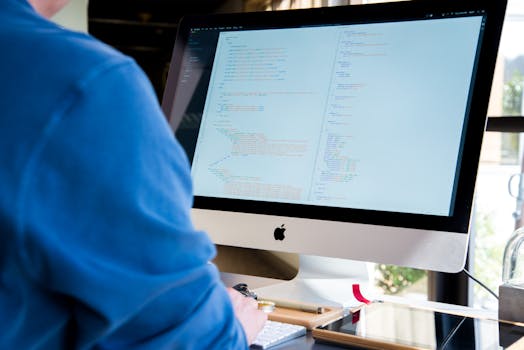
A programmer in a blue shirt coding on an iMac. Perfect for technology or work-related themes. Photo: Lee Campbell / Pexels
Once you've identified potential culprits, the next major step in learning how to fix slow computer performance involves a thorough digital declutter and software optimization. Over time, our computers accumulate a vast amount of unnecessary data, programs, and background processes that collectively drag down performance. Addressing these software-related issues is often the most impactful way to regain speed without spending a dime on hardware. Start with uninstalling unused programs. Every application you install, even if you rarely use it, can leave behind registry entries, temporary files, and even background services that consume system resources. Go to 'Add or Remove Programs' in Windows or 'Applications' in macOS and systematically remove anything you no longer need. Be merciless! If you haven't used it in months, it's probably safe to remove. Pay special attention to 'crapware' or 'bloatware' that often comes pre-installed on new computers. These programs are rarely useful and are notorious for hogging resources. Next, tackle your startup programs. Many applications are configured to launch automatically when your computer starts, even if you don't need them immediately. This not only slows down your boot time but also consumes RAM and CPU cycles from the moment you log in. In Windows, you can manage startup programs via the Task Manager (Startup tab). In macOS, go to System Settings > General > Login Items. Disable anything that isn't absolutely essential for your system to function. Your antivirus software, for example, should typically remain active at startup, but most other applications can be manually launched when needed. A clean startup significantly reduces the initial load on your system. Don't forget about temporary files and disk cleanup. Your operating system and various applications constantly create temporary files, browser caches, and download remnants that can accumulate and take up valuable disk space, especially on smaller SSDs. In Windows, the built-in 'Disk Cleanup' utility (search for it in the Start menu) is excellent for this. On Mac, tools like 'Optimise Storage' (System Settings > General > Storage) can help. Regularly clearing these files frees up space and can improve disk access speeds. Browser caches, in particular, can grow enormous, so periodically clearing your browser's history, cookies, and cache is a good habit. While some caching is beneficial, excessive cache can become counterproductive. This comprehensive software cleanup is a vital part of maintaining a fast and responsive computer, ensuring that your system's resources are dedicated to the tasks you actually want to perform rather than being tied up by digital junk.

Deep Dive into System Settings and Advanced Optimization

Crop anonymous female teacher pointing at netbook screen near schoolchildren touching mouses at desk in classroom Photo: Ryutaro Tsukata / Pexels
Beyond basic cleanup, delving into your computer's system settings and implementing advanced optimization techniques can significantly improve how to fix slow computer performance. These adjustments fine-tune your operating system to prioritize speed and efficiency over aesthetics or less critical features. This step requires a bit more attention but yields substantial rewards in terms of responsiveness and overall system fluidity. One of the most impactful adjustments is managing visual effects. Modern operating systems, both Windows and macOS, come with a plethora of eye-candy like animations, shadows, and transparency effects. While visually appealing, these effects consume valuable GPU and CPU resources, especially on older or less powerful machines. In Windows, search for 'Adjust the appearance and performance of Windows' and select 'Adjust for best performance' or customize which visual effects you want to keep. On macOS, reducing transparency and motion in Accessibility settings can similarly lighten the load. Sacrificing a bit of visual flair for a snappier experience is often a worthwhile trade-off. Next, focus on power settings. While laptops are designed for battery efficiency, this often comes at the cost of performance when not plugged in. Ensure your power plan is set to 'High Performance' (Windows) or 'Better Performance' (macOS) when you're connected to power and need maximum speed. This prevents your CPU from throttling down to conserve energy, allowing it to run at its full potential. For desktops, 'High Performance' should generally be the default. Also, ensure your operating system and all drivers are up to date. Outdated drivers can lead to compatibility issues, performance bottlenecks, and even system instability. Windows Update and macOS Software Update handle most of this automatically, but it's good practice to manually check for updates for critical components like your graphics card, chipset, and network adapters, often directly from the manufacturer's website. These updates frequently include performance enhancements and bug fixes that directly contribute to a faster system. Finally, consider disk defragmentation (for traditional HDDs only) and file indexing. While SSDs do not require defragmentation and it can actually reduce their lifespan, traditional hard drives (HDDs) benefit from it. Over time, files on an HDD can become fragmented, meaning parts of a single file are scattered across different areas of the disk, slowing down access times. Windows has a built-in 'Defragment and Optimize Drives' tool. For macOS, disk defragmentation is generally managed automatically by the OS. File indexing, while useful for fast searches, can sometimes be a background resource hog. You can adjust indexing options in Windows Search settings or Spotlight preferences on Mac to exclude less critical locations or rebuild the index if it becomes corrupted. These advanced tweaks, when applied judiciously, can significantly enhance your computer's ability to handle demanding tasks and provide a much smoother user experience, demonstrating that a deep understanding of system optimization is key.

Hardware Horizons: When to Upgrade for Peak Performance
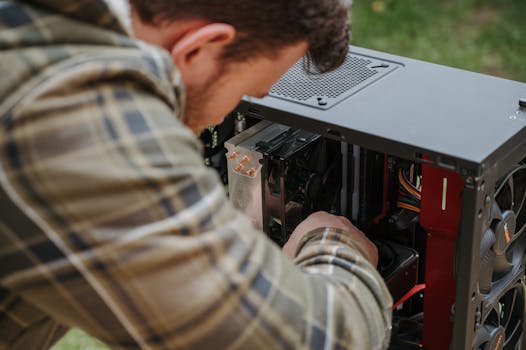
A man cleans and maintains a desktop PC outdoors with precision. Photo: Anete Lusina / Pexels
Sometimes, even the most meticulous software optimization isn't enough to fully address how to fix slow computer performance, indicating that hardware limitations might be the primary bottleneck. While software tweaks are cost-free, investing in targeted hardware upgrades can provide a dramatic and lasting boost to your computer's speed and responsiveness. It's crucial to identify which component is truly holding your system back to ensure your investment is worthwhile. The two most common and impactful hardware upgrades for a slow computer are increasing RAM (Random Access Memory) and replacing a traditional Hard Disk Drive (HDD) with a Solid State Drive (SSD). If your computer frequently lags when multitasking, switching between applications, or running memory-intensive programs like video editors or modern web browsers with many tabs, insufficient RAM is likely the culprit. When RAM fills up, your system starts using virtual memory on your hard drive, which is significantly slower, leading to noticeable slowdowns. Upgrading from 4GB to 8GB or 16GB of RAM can transform a sluggish machine into a highly responsive one, allowing you to run more applications simultaneously without performance degradation. Check your system's specifications to determine the maximum RAM it supports and the type of RAM (DDR3, DDR4, DDR5) required. Replacing an HDD with an SSD is arguably the single most impactful upgrade for overall system speed. Traditional HDDs are mechanical and have moving parts, making them inherently slow for reading and writing data compared to flash-based SSDs. An SSD can drastically reduce boot times, application loading times, and file transfer speeds. The difference is often astounding, making an old computer feel brand new. Even a budget SSD can offer a monumental performance leap over a high-end HDD. If your computer takes minutes to boot up or applications launch sluggishly, an SSD upgrade should be your top priority. You can either replace your primary drive with an SSD and reinstall your OS, or, if you have an available bay, add an SSD and migrate your operating system to it, keeping your HDD for mass storage. Before embarking on any hardware upgrade, ensure compatibility with your existing system and consider seeking professional help if you're uncomfortable with the installation process. These strategic hardware enhancements often provide the most significant and lasting solutions to persistent performance issues.

Comparison

FactorSoftware OptimizationRAM UpgradeSSD UpgradeNew Computer
CostFree$50-$150$50-$200$500-$2000+
Impact on SpeedModerate to HighHigh (multitasking)Very High (overall)Very High
Ease of ImplementationEasyModerateModerate to HardEasy (purchase)
Lifespan ExtensionModerateHighHighN/A
Best forGeneral slowness, bloatHeavy multitaskersSlow boot/load timesVery old/damaged PC

What Readers Say

"My laptop was painfully slow, but following these steps on how to fix slow computer performance, especially the startup program management, made a huge difference. It's like a brand new machine now, truly impressed!"

Sarah J. · Austin, TX

"I was about to buy a new PC, but decided to try these optimization tips first. Clearing temporary files and updating drivers significantly improved my gaming performance. Saved me hundreds!"

Mark D. · Chicago, IL

"The guide on how to fix slow computer performance was incredibly detailed. After upgrading my RAM and migrating to an SSD as suggested, my video editing software runs flawlessly. Boot time went from 3 minutes to 15 seconds!"

Emily R. · Seattle, WA

"Most of the software tips were great, and my computer is much faster for daily tasks. I still experience some slowness with very demanding applications, which might indicate a need for a CPU upgrade, but it's a huge improvement."

David L. · Miami, FL

"As a remote worker, a slow computer was killing my productivity. This article on how to fix slow computer performance offered practical, actionable advice that I could implement myself. My work machine is now running smoothly, no more frustrating lags during video calls!"

Jessica M. · Denver, CO

Frequently Asked Questions

What is the most common reason for a slow computer?

The most common reason for a slow computer is often an accumulation of software-related issues, including too many background programs, insufficient RAM for current usage, a cluttered hard drive, or malware infections. Hardware limitations, such as an old HDD or an underpowered CPU, can also contribute significantly.

Will an antivirus slow down my computer?

While antivirus software does consume some system resources, a reputable and well-optimized antivirus program should not significantly slow down a modern computer during normal operation. Its benefits in protecting against malware far outweigh any minor performance impact. Ensure you're using a current, legitimate solution and performing scans during off-peak hours.

How do I check if my computer has enough RAM?

To check if your computer has enough RAM, open Task Manager (Windows) or Activity Monitor (Mac) and navigate to the 'Performance' or 'Memory' tab. Observe the memory usage during your typical workflow. If it consistently hovers near 80-100% or your system frequently uses virtual memory (page file), you likely need more RAM.

Is it worth buying a new computer or just upgrading?

The decision to upgrade or buy new depends on your current computer's age, specifications, and the extent of the slowdown. For computers 3-5 years old, an SSD and/or RAM upgrade can offer significant performance improvements for a fraction of the cost of a new machine. If your computer is much older, has a failing CPU, or requires multiple expensive component replacements, a new computer might be a more cost-effective long-term solution.

How often should I clean my computer's internal components?

Cleaning your computer's internal components, especially fans and heatsinks, should ideally be done every 6-12 months, or more frequently if you live in a dusty environment or have pets. Dust buildup can impede airflow, leading to overheating and thermal throttling, which significantly slows down performance. Use compressed air and ensure the computer is powered off and unplugged.

Who should prioritize an SSD upgrade for their slow computer?

Anyone whose computer experiences painfully slow boot times, long application loading screens, or general sluggishness when opening files should prioritize an SSD upgrade. It provides the most dramatic and noticeable speed improvement for general use and is highly recommended for systems still running on traditional hard drives.

Is using a 'PC cleaner' software safe?

Many 'PC cleaner' software tools are legitimate and can help with temporary file cleanup and system optimization, but some can be intrusive or even malicious. Stick to well-known, reputable brands like CCleaner (used cautiously) or the built-in Disk Cleanup/Storage Sense features in Windows and macOS's Optimize Storage. Avoid obscure or heavily advertised 'one-click fix' solutions.

What future trends might impact computer performance?

Future trends impacting computer performance include the increasing adoption of AI and machine learning, requiring more powerful CPUs and GPUs, and the continued shift towards cloud computing, which can offload local processing. Advancements in quantum computing and new memory technologies like CXL could also revolutionize how computers process and store data, leading to unprecedented speed gains.

Don't let a slow computer hinder your productivity or enjoyment any longer. By following these expert strategies on how to fix slow computer performance, you can revitalize your machine and experience the speed and efficiency you deserve. Take action today and transform your digital life!

Topics: how to fix slow computer performancespeed up computeroptimize PCcomputer maintenance tipsslow laptop solutions
Leo List
Brampton weed
Adultwork