How to Build a Gaming PC: Your Ultimate DIY Guide
how to build a gaming PC

How to Build a Gaming PC: Your Ultimate DIY Guide

Close-up of a colorful RGB cooling fan in a gaming PC setup.Photo: Necroform Art / Pexels

How to Build a Gaming PC: Your Ultimate DIY Guide

Unlock superior performance and customization by building your own gaming PC with our expert-led, step-by-step instructions.

Start Building Your Dream PC

Key Takeaways

  • ✓ Building a gaming PC can save you money compared to pre-built systems.
  • ✓ You gain full control over component selection for optimal performance and aesthetics.
  • ✓ The process is more straightforward than many assume, even for beginners.
  • ✓ A custom-built PC offers easier upgrades and better long-term value.

How It Works

1
Research & Component Selection

Determine your budget and performance goals, then meticulously select compatible CPU, GPU, motherboard, RAM, storage, PSU, and case. Compatibility is key for a smooth build.

2
Assembly & Initial Setup

Carefully install each component into the PC case, connecting all necessary cables according to your motherboard manual. This stage requires patience and attention to detail.

3
Software Installation & Drivers

Once hardware is assembled, install your operating system, typically Windows, from a USB drive. Follow up by installing all necessary drivers for your motherboard, GPU, and other peripherals to ensure optimal performance.

4
Testing & Optimization

Run benchmark tests to confirm stability and performance, then tweak settings and consider overclocking (if comfortable) for maximum gaming potential. Monitor temperatures to ensure everything runs cool.

Understanding Core Gaming PC Components
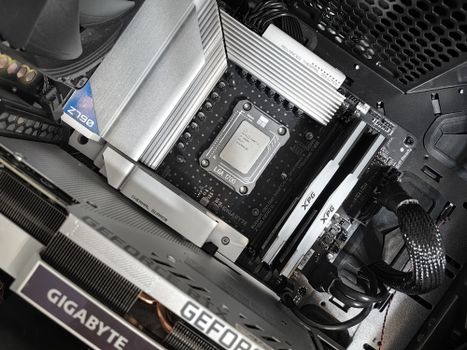
Interior view of a high-performance PC build featuring a Gigabyte motherboard and components.Photo: Andrey Matveev / Pexels
Embarking on the journey of building your own gaming PC begins with a fundamental understanding of its core components. This isn't just about knowing what each part is called, but comprehending its role, its interplay with other components, and how it contributes to your overall gaming experience. The beauty of building your own system lies in the power of choice, allowing you to tailor performance and aesthetics precisely to your needs and budget. Let's break down the essential elements that form the backbone of any high-performance gaming rig. First and foremost is the Central Processing Unit (CPU), often referred to as the 'brain' of your computer. For gaming, a powerful CPU ensures smooth gameplay, handles complex game logic, and supports background applications without a hitch. Intel's Core i5/i7/i9 series and AMD's Ryzen 5/7/9 series are the dominant players here. When choosing a CPU, consider its core count, thread count, clock speed, and cache size. While gaming often prioritizes clock speed, more cores are beneficial for multitasking, streaming, and future-proofing. Always ensure your chosen CPU is compatible with your motherboard's socket type (e.g., LGA 1700 for Intel, AM5 for AMD). Selecting the right CPU is a critical first step. Next, and arguably the most crucial component for gaming performance, is the Graphics Processing Unit (GPU), also known as the graphics card or video card. This is where the heavy lifting of rendering intricate game worlds, high-fidelity textures, and fluid animations takes place. NVIDIA's GeForce RTX series and AMD's Radeon RX series lead the market, offering a range of cards from budget-friendly options to top-tier beasts capable of 4K gaming with ray tracing. The GPU's VRAM (video memory) capacity, clock speed, and number of processing cores directly impact its performance. Your choice of GPU will largely dictate the resolution and frame rate you can achieve in modern games, making it the most significant budgetary allocation for most gaming builds. The Motherboard acts as the central nervous system, connecting all your components and allowing them to communicate. It houses the CPU socket, RAM slots, PCIe slots for your GPU and other expansion cards, and various ports for storage and peripherals. Compatibility with your chosen CPU (socket type) and RAM (DDR4 or DDR5) is paramount. Motherboards also come with different chipsets, which determine features like USB port availability, M.2 slots for NVMe SSDs, and overclocking capabilities. Brands like ASUS, MSI, Gigabyte, and ASRock offer a wide array of options, varying in features, quality, and price. A good motherboard ensures stability and provides room for future upgrades. Random Access Memory (RAM) is your system's short-term memory, used to store data that the CPU needs to access quickly. For gaming, 16GB of RAM is generally considered the sweet spot for modern titles, with 32GB becoming increasingly popular for high-end systems, streaming, or content creation. The speed of RAM, measured in MHz, and its latency (CAS Latency or CL) also affect performance. Faster RAM can provide a noticeable boost, especially with AMD Ryzen CPUs. Ensure you purchase RAM that is compatible with your motherboard's DDR generation (DDR4 or DDR5) and that you install it in pairs (dual channel) for optimal performance. Storage is where your operating system, games, and other files reside. Solid State Drives (SSDs) have largely replaced traditional Hard Disk Drives (HDDs) as the primary storage for gaming PCs due to their vastly superior speed. NVMe SSDs, which connect via PCIe, are the fastest type, offering lightning-fast boot times and game loading. SATA SSDs are a more affordable option but still much faster than HDDs. Many builders opt for a combination: a smaller, fast NVMe SSD for the OS and frequently played games, and a larger SATA SSD or HDD for mass storage of less-demanding games and media files. Understanding storage types can significantly impact your PC's responsiveness. Finally, the Power Supply Unit (PSU) is often overlooked but is critically important. It supplies power to all your components, and a cheap or underpowered PSU can lead to system instability or even component damage. PSUs are rated by wattage (e.g., 650W, 750W) and efficiency (e.g., 80 Plus Bronze, Gold, Platinum). You'll need to calculate the total wattage required by your components and then choose a PSU with a comfortable overhead. Always opt for a reputable brand to ensure reliability and safety. Proper cable management within your case also starts with a modular or semi-modular PSU, which allows you to connect only the cables you need, improving airflow and aesthetics.

Step-by-Step Assembly: Bringing Your Rig to Life
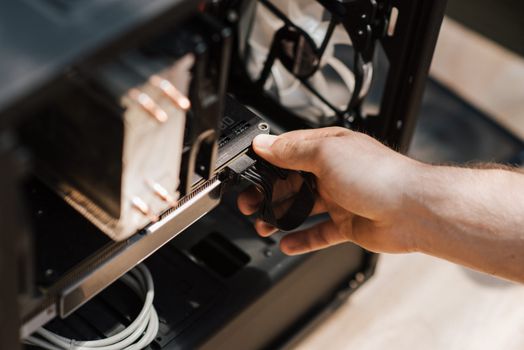
From above crop unrecognizable male inputting cables in modern computer system unit at homePhoto: Anete Lusina / Pexels
With your components meticulously chosen and laid out, the exciting phase of assembly begins. This is where your dream PC starts to take physical form. While it might seem daunting, approaching it systematically, step by step, makes the process manageable and enjoyable. Remember to work on a clean, static-free surface, and ideally wear an anti-static wrist strap to protect sensitive electronics from electrostatic discharge. 1. **Prepare Your Case and Motherboard:** Start by opening your PC case and removing any side panels. Lay the case on its side for easier access. Next, take your motherboard out of its anti-static bag and place it on its own anti-static mat or the motherboard box. Install the I/O shield (the metal plate that covers the ports) into the back of your PC case from the inside. Many modern cases and motherboards have integrated I/O shields, simplifying this step. 2. **Install the CPU:** This is perhaps the most delicate step. Open the CPU socket lever on your motherboard. Carefully align the CPU with the socket, paying close attention to the orientation markers (usually a small arrow or triangle on both the CPU and the socket). Gently lower the CPU into the socket without forcing it. Once seated, close the lever to secure it. Do not touch the pins or contacts on the underside of the CPU. 3. **Install the CPU Cooler:** If your CPU came with a stock cooler, follow its instructions. For aftermarket air coolers or All-in-One (AIO) liquid coolers, you'll first apply thermal paste (if not pre-applied) to the top of the CPU. Then, mount the cooler securely according to its specific instructions, ensuring even pressure. Connect the CPU fan header to the designated 'CPU_FAN' header on your motherboard. For AIOs, mount the radiator to an appropriate fan slot in your case and connect the pump and fan headers. 4. **Install the RAM:** Locate the RAM slots on your motherboard. They are usually next to the CPU socket. Open the clips at both ends of the chosen slots. Align your RAM sticks, ensuring the notch on the RAM module matches the notch in the slot. Press down firmly and evenly on both ends of the RAM stick until the clips snap into place. Consult your motherboard manual for the correct slots to use for dual-channel memory (often slots 2 and 4). 5. **Mount the Motherboard:** Carefully lower your motherboard into the PC case, aligning the screw holes on the motherboard with the standoffs pre-installed in your case. If your case doesn't have pre-installed standoffs, you'll need to screw them in first. Secure the motherboard with the appropriate screws provided with your case, ensuring it's snug but not overtightened. 6. **Install Storage Drives:** For NVMe SSDs, locate the M.2 slots on your motherboard (often under a heatsink). Remove the heatsink, insert the NVMe drive at an angle, and push it down before securing it with the small screw or latch. For SATA SSDs or HDDs, mount them into the drive bays in your case. Connect a SATA data cable from the drive to a SATA port on your motherboard, and a SATA power cable from your PSU. 7. **Install the Graphics Card (GPU):** Locate the primary PCIe x16 slot on your motherboard (usually the top-most, reinforced slot). Open the retention clip at the end of the slot. Align your GPU with the slot and press it down firmly until it clicks into place and the clip secures it. You may need to remove a few expansion slot covers from the back of your case. Secure the GPU to the case with screws. Connect the necessary PCIe power cables from your PSU to the GPU. 8. **Install the Power Supply Unit (PSU):** Mount your PSU into its designated slot in the case, typically at the bottom or top rear. Secure it with screws from the outside. Begin connecting the main power cables: the 24-pin ATX power connector to the motherboard, the 4+4-pin or 8-pin EPS power connector to the motherboard (for CPU power), and the PCIe power cables to your GPU. Connect SATA power cables to your storage drives and case fans. 9. **Connect Case Wires and Cable Management:** This step involves connecting the smaller, front-panel connectors from your case to the motherboard: USB ports, audio jacks, power button, reset button, and front panel LEDs. Refer to your motherboard manual carefully for the correct pin assignments, as these can be tricky. Once everything is connected, route your cables neatly behind the motherboard tray and through grommets to improve airflow and aesthetics. Good cable management is key for both performance and visual appeal.

First Boot, Software, and Optimizing Your Gaming Experience
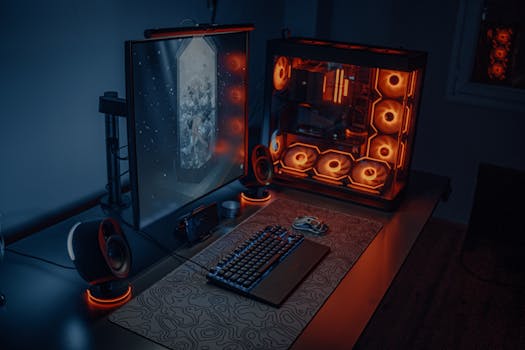
Sleek gaming desk setup featuring RGB lighting, large monitor, and gaming PC with glowing fans.Photo: Atahan Demir / Pexels
Congratulations! You've assembled your gaming PC. Now comes the moment of truth: the first boot. This stage is crucial for ensuring all your hardware is recognized and properly configured before diving into games. Don't be discouraged if it doesn't work perfectly on the first try; troubleshooting is a normal part of the PC building process. Once the system powers on, you'll move to software installation and then fine-tuning for optimal gaming performance. **The First Boot and BIOS/UEFI Setup:** Connect your monitor, keyboard, and mouse to the newly built PC. Plug in the power cable and flip the switch on the PSU. Press the power button on your case. If all goes well, your fans will spin, lights will illuminate, and your monitor will display the motherboard's splash screen, followed by access to the BIOS (Basic Input/Output System) or UEFI (Unified Extensible Firmware Interface). If nothing happens, or you get error codes, refer to your motherboard manual for troubleshooting steps – often a simple reseating of RAM or GPU can resolve issues. Common PC building mistakes often occur during this stage. Once in the BIOS/UEFI, take a moment to explore. Ensure your CPU, RAM (with correct speed), and storage devices are recognized. You may need to enable XMP (Extreme Memory Profile) or DOCP (Direct Overclock Profile) for your RAM to run at its advertised speeds, as it often defaults to a lower speed. Set your boot order to prioritize your USB drive containing your operating system installer. Save your changes and exit the BIOS/UEFI. **Operating System Installation:** For most gamers, Windows 10 or Windows 11 will be your operating system of choice. You'll need a USB flash drive with a Windows installation media created using Microsoft's Media Creation Tool. Insert the USB drive, and your PC should boot from it, initiating the Windows setup process. Follow the on-screen prompts to select your language, accept the terms, choose a custom installation, and select your primary NVMe or SATA SSD as the installation drive. Windows will then install, and your PC will restart several times. Once complete, you'll be guided through initial setup, account creation, and privacy settings. **Driver Installation:** After Windows is installed, your PC might function, but it won't perform optimally without the correct drivers. Drivers are software that allows your operating system to communicate effectively with your hardware. Start by installing the latest chipset drivers for your motherboard from the manufacturer's website. Next, install the most critical driver: your GPU driver. Visit NVIDIA's or AMD's website, download the latest drivers for your specific graphics card model, and install them. This is vital for gaming performance. Finally, install any other necessary drivers, such as network drivers (if not automatically installed by Windows), audio drivers, and peripheral drivers. Many motherboard manufacturers provide a utility disk or software package that can help automate some of these driver installations. **Essential Software and Game Installations:** With drivers in place, install essential software. This includes web browsers, antivirus software, and your preferred game launchers like Steam, Epic Games Store, GOG Galaxy, or Battle.net. Begin downloading your favorite games. Remember that large game files will take time to download, so plan accordingly. **System Optimization for Gaming:** To squeeze every frame out of your new rig, consider these optimizations: * **Windows Settings:** Go to 'Settings > System > Display > Graphics settings' and ensure 'Hardware-accelerated GPU scheduling' is on. In 'Gaming > Game Mode,' make sure Game Mode is enabled. Disable unnecessary background apps. * **GPU Control Panel:** Open your NVIDIA Control Panel or AMD Radeon Software. Here you can fine-tune global settings, create game-specific profiles, and enable features like G-Sync/FreeSync if your monitor supports it. * **Monitor Refresh Rate:** Ensure your monitor's refresh rate is set to its maximum (e.g., 144Hz, 240Hz) in Windows display settings. * **Keep Drivers Updated:** Regularly check for new GPU drivers and motherboard BIOS updates. These often bring performance improvements and bug fixes. * **Monitor Temperatures:** Use software like HWMonitor or MSI Afterburner to keep an eye on your CPU and GPU temperatures, especially during gaming sessions. Excessive heat can lead to throttling and reduced performance. If temperatures are consistently high, consider improving case airflow or adjusting fan curves. * **Overclocking (Optional):** For experienced users, overclocking your CPU or GPU can yield additional performance. However, this requires careful research, monitoring, and can void warranties if done improperly. Start with small increments and thoroughly test stability. Always prioritize stability and component longevity over marginal performance gains. By diligently following these steps, you'll not only have a fully functional gaming PC but one that is optimized to deliver the best possible gaming experience right from the start.

Common Pitfalls and Pro Tips for a Smooth Build
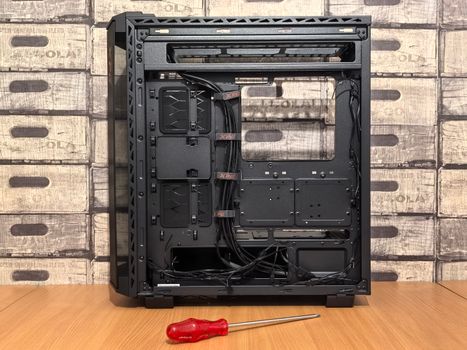
Open computer case ready for installation, with screwdriver placed nearby on desk.Photo: Andrey Matveev / Pexels
Building a gaming PC is a rewarding experience, but like any intricate DIY project, it comes with its share of potential challenges. Being aware of common pitfalls and equipping yourself with pro tips can significantly smooth out the process, prevent frustration, and ensure your first build is a success. Even seasoned builders encounter minor hiccups, so patience and a methodical approach are your best allies. **Common Pitfalls to Avoid:** * **Forgetting the I/O Shield:** This is a classic rookie mistake. Many builders get absorbed in the excitement and forget to install the motherboard's I/O shield *before* mounting the motherboard into the case. Realizing this after everything is screwed in means partially disassembling your build. Modern motherboards often have integrated I/O shields, but always double-check. * **Improper Thermal Paste Application:** Too much or too little thermal paste can hinder heat transfer from the CPU to the cooler, leading to higher temperatures and thermal throttling. A pea-sized dot in the center of the CPU is generally sufficient for most applications. * **Loose or Unconnected Cables:** A common cause of a PC not booting is a power cable (like the 24-pin ATX or 8-pin CPU power) not fully seated, or a front panel connector (power button, reset, LEDs) plugged into the wrong pins. Double-check all connections, ensuring they are firmly clicked into place. * **Incorrect RAM Slot Usage:** While all RAM slots look similar, motherboards often require specific slots (e.g., A2 and B2) to be populated first for dual-channel memory. Consult your motherboard manual for the correct configuration to ensure optimal RAM performance. * **Forgetting to Flip the PSU Switch:** After connecting all power cables, it's easy to forget the master switch on the back of the Power Supply Unit. If your PC doesn't power on, this is often the first thing to check. * **Static Discharge:** Electrostatic discharge (ESD) can damage sensitive components. While less common with modern components, it's still a risk. Working on a hard, non-carpeted surface and periodically touching a grounded metal object (like your PC case) can help. An anti-static wrist strap is the safest precaution. * **Ignoring Driver Updates:** Relying on generic Windows drivers will severely limit your PC's performance, especially the GPU. Always download and install the latest drivers from your component manufacturers' websites. **Pro Tips for a Seamless Build:** * **Read Your Manuals:** This cannot be stressed enough. Your motherboard manual is an invaluable resource, detailing everything from CPU installation to front panel header pinouts. Keep it handy throughout the build. * **Work Methodically:** Don't rush. Take your time with each step. Lay out your components and tools in an organized fashion. Watch a few build videos online to visualize the process before you start. * **Test Components Outside the Case (Optional but Recommended):** For maximum peace of mind, many experienced builders perform a 'bench test' before installing everything into the case. This involves connecting the CPU, cooler, RAM, and GPU to the motherboard outside the case, along with the PSU, and attempting to boot into the BIOS. This helps isolate issues to a specific component before complicating things with case mounting and cable management. * **Excellent Cable Management:** Beyond aesthetics, good cable management improves airflow within your case, leading to better cooling and potentially higher performance. Utilize cable ties, Velcro straps, and the routing channels behind your motherboard tray. * **Don't Force Anything:** Components are designed to fit precisely. If something doesn't seem to go in, double-check the orientation and alignment. Forcing a component can bend pins or damage sockets, leading to costly repairs. * **Keep Component Boxes:** Retain all original packaging, especially for high-value components. These boxes contain accessories, spare screws, and are essential if you ever need to RMA a part. * **Have Troubleshooting Resources Ready:** Bookmark online forums, YouTube troubleshooting guides, and your motherboard's support page. Knowing where to look for solutions if something goes wrong will save you hours of frustration. * **Install Fans for Optimal Airflow:** Understand the concept of positive and negative air pressure within your case. Generally, you want more intake fans (pushing air in) than exhaust fans (pulling air out) to create positive pressure, which helps keep dust out. Ensure fans are oriented correctly (most have an arrow indicating airflow direction). * **Regular Cleaning:** Once your PC is built, make it a habit to regularly clean out dust from your fans and heatsinks using compressed air. Dust buildup significantly impedes cooling efficiency. By internalizing these tips and avoiding common mistakes, you'll find that building a gaming PC is not only achievable but a deeply satisfying accomplishment, providing you with a machine perfectly tailored to your gaming desires.

Comparison

FeatureDIY Gaming PCPre-built Gaming PCGaming Laptop
CostPotentially lowerHigher initial costHighest initial cost
Customization✓ (Full control)✗ (Limited options)✗ (Very limited)
Upgradeability✓ (Excellent)✓ (Limited CPU/GPU)✗ (RAM/Storage only)
Performance/PriceBest valueGood, but less flexibleCompromised for portability
TroubleshootingRequires user knowledgeManufacturer supportManufacturer support
Portability✗ (Desktop)✗ (Desktop)✓ (Excellent)

What Our Readers Say

5 ★★★★★

"Following this guide, I finally built my first gaming PC. The detailed steps and component explanations made the process so much less intimidating. It booted up on the first try!"

5 ★★★★★

"I used to think building a PC was only for experts, but this article broke it down perfectly. My new rig runs Cyberpunk 2077 flawlessly, and I saved hundreds compared to a pre-built."

5 ★★★★★

"The troubleshooting tips in this guide were a lifesaver. I had a minor issue with my RAM, but the advice here helped me fix it quickly. Now I have a custom gaming PC that performs exactly how I wanted."

4 ★★★★☆

"While the guide was incredibly helpful, I wish there was a bit more emphasis on budget component choices for beginners. Still, I managed to build a great PC, and I'm very happy with the result."

5 ★★★★★

"As someone who streams and plays competitive games, building my own PC allowed me to choose specific parts for both. The performance is leagues beyond my old machine, and it feels great to have built it myself."

Frequently Asked Questions

Is building a gaming PC hard for beginners?
While it requires patience and attention to detail, building a gaming PC is much easier than it appears. Modern components are largely modular and designed for straightforward installation. With a good guide and some careful planning, even first-timers can successfully assemble a high-performance machine.
What's the biggest risk when building a PC?
The biggest risk is damaging components through static electricity or improper handling, particularly with the CPU. However, taking simple precautions like working on a clean, non-carpeted surface and using an anti-static wrist strap can virtually eliminate this risk. Always handle components by their edges, not their contacts.
How do I know if my components are compatible?
Compatibility is crucial. Use online PC Part Picker websites or consult manufacturer specifications. Key compatibility points include CPU socket type matching the motherboard, RAM type (DDR4/DDR5) matching the motherboard, and ensuring your PSU has enough wattage and the correct connectors for your GPU and other components.
Is it cheaper to build a gaming PC or buy a pre-built one?
Generally, building a gaming PC yourself is cheaper than buying a comparable pre-built system. You save on labor costs and can often find better deals on individual components. However, this varies, and sometimes pre-builts can offer good value during sales, especially for entry-level systems.
How does a custom-built PC compare to a gaming laptop?
A custom-built PC typically offers significantly better performance for the price, easier upgradeability, and superior cooling compared to a gaming laptop. Gaming laptops prioritize portability but often come with performance compromises and higher costs for equivalent specs. If portability isn't a primary concern, a desktop PC is almost always the better gaming choice.
Who should consider building their own gaming PC?
Anyone looking for maximum performance for their budget, complete control over component selection, easy future upgrades, and a deeper understanding of their system should consider building their own gaming PC. It's also ideal for those who enjoy a hands-on project and want a truly personalized setup.
Are there any safety concerns when building a PC?
Beyond static electricity, the main safety concern is working with power. Always ensure the PSU is unplugged from the wall and its switch is off before handling any internal components. Modern PSUs and components are designed with safety in mind, but caution is always advised.
What are the future trends in PC building?
Future trends include increasing adoption of NVMe Gen 5 SSDs, more powerful and efficient GPUs, advancements in CPU core counts and architectures, and greater integration of AI acceleration. We'll also see continued refinement in cooling solutions, modular PSU designs, and potentially more tool-less case designs for easier assembly and maintenance.

Building your own gaming PC is an empowering and cost-effective way to achieve the ultimate gaming experience. With this comprehensive guide, you have all the knowledge needed to confidently embark on your DIY journey. Start planning your build today and unlock unparalleled performance and customization.

Topics: how to build a gaming PCDIY gaming PCPC building guidecustom gaming computergaming PC components
Leo List
Brampton weed
Adultwork