How to Build a Gaming PC: Your Ultimate DIY Guide

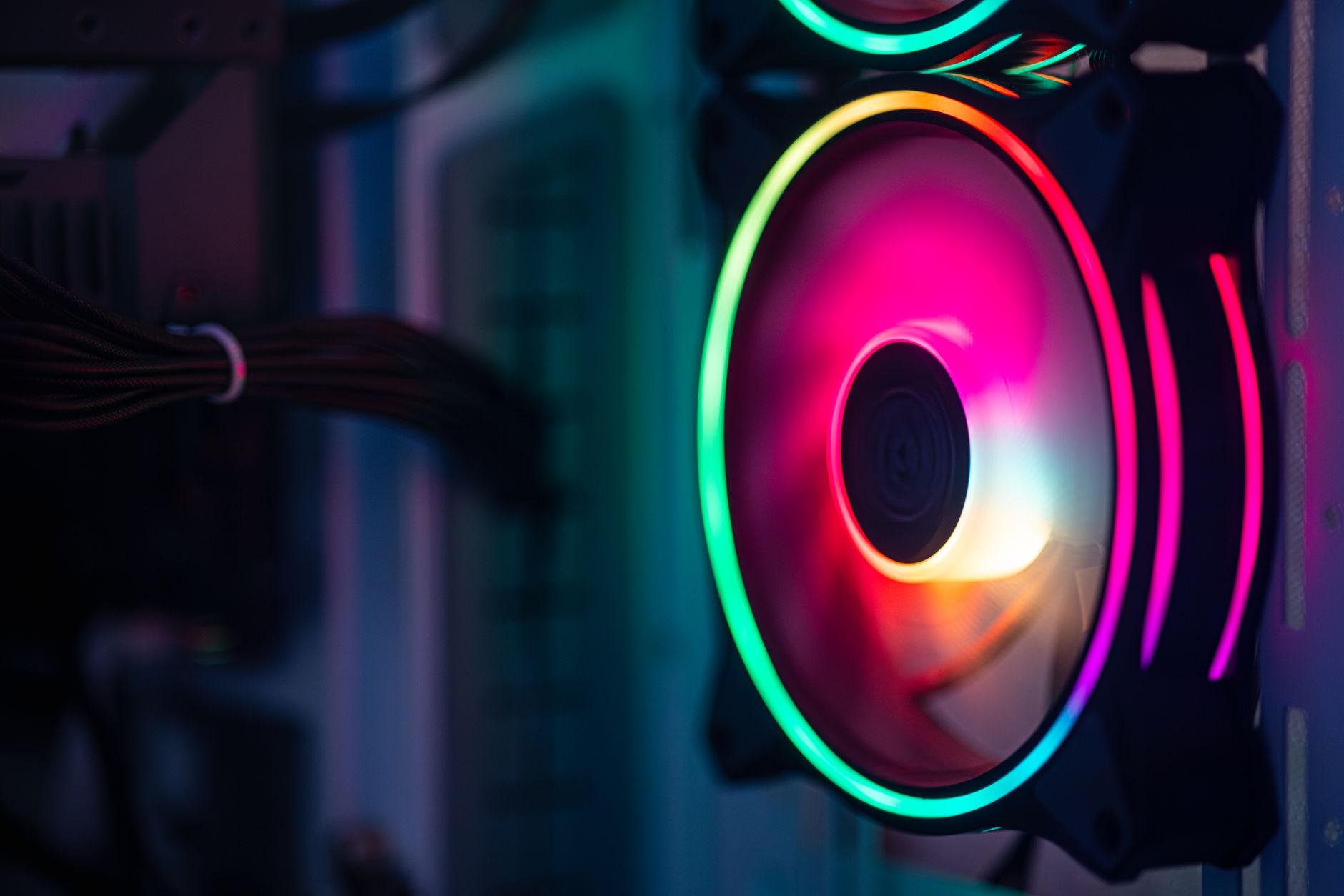
Close-up of a colorful RGB cooling fan in a gaming PC setup.Photo: Necroform Art / Pexels

How to Build a Gaming PC: Your Ultimate DIY Guide

Unlock unparalleled performance and personalize your gaming experience by building your own powerful PC today.

Start Building Your PC!

Key Takeaways

  • ✓ Building a gaming PC can be more cost-effective than buying a pre-built system.
  • ✓ You gain full control over component selection, optimizing for performance and budget.
  • ✓ The process is empowering and provides valuable tech knowledge.
  • ✓ Modern PC components are designed for easier assembly than ever before.

How It Works

1
Plan Your Build & Choose Components

Research and select compatible parts based on your budget and performance goals. This foundational step ensures a smooth assembly and optimal gaming experience.

2
Assemble Core Components

Install the CPU, cooler, RAM, and M.2 SSD onto the motherboard before placing it into the case. This pre-assembly simplifies the process significantly.

3
Mount & Wire Everything

Secure the motherboard, graphics card, power supply, and other storage drives inside the PC case. Carefully connect all necessary power and data cables.

4
Install OS & Drivers

Once hardware is assembled, install your operating system (Windows is common) and all necessary drivers for your components. This brings your PC to life and optimizes performance.

Why Build Your Own Gaming PC? The Custom Advantage
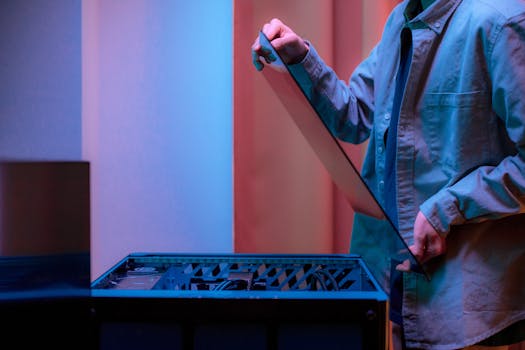
A man carefully fits a glass panel onto a gaming PC while adjusting internal cables.Photo: Ron Lach / Pexels
Deciding to build your own gaming PC is a significant step that offers numerous advantages over purchasing a pre-built system. The most compelling reason is the unparalleled control you gain over every single component. Unlike pre-builts, where you're often limited to specific configurations and sometimes proprietary parts, a custom build allows you to hand-pick each piece of hardware. This means you can allocate your budget precisely where it matters most for your gaming habits. If you're a competitive esports player, you might prioritize a high refresh rate monitor and a powerful CPU/GPU combo. If you're into immersive single-player adventures, perhaps a larger, higher-resolution display and abundant storage for expansive game libraries are more important. This level of customization ensures that every dollar spent contributes directly to your desired gaming experience, avoiding unnecessary expenses on features you don't need. Beyond customization, building your PC can often lead to better value for money. Pre-built systems include a markup for assembly, warranty, and brand profit. By doing the work yourself, you essentially cut out the middleman, allowing you to invest more of your budget into higher-quality components. This often translates to a more powerful machine for the same price, or a similarly powerful machine for less. Furthermore, the process of assembling your PC provides invaluable knowledge about how computers work. You'll understand component compatibility, airflow dynamics, and troubleshooting basics, which empowers you to perform future upgrades or repairs with confidence. This hands-on experience demystifies technology and turns you into a more informed consumer and user. The sense of accomplishment from powering on a machine you built with your own hands is also incredibly rewarding. It’s more than just a computer; it's a personal project that reflects your dedication and passion for gaming. Exploring different PC component manufacturers can further enhance your understanding of the market. This foundational knowledge is crucial before you even start considering specific gaming PC builds.

Essential Components: What You Need to Get Started
Close-up of a colorful RGB cooling fan in a gaming PC setup.Photo: Necroform Art / Pexels
Embarking on your PC building journey requires a clear understanding of the core components that make up a functional gaming machine. Each part plays a crucial role, and their synergy determines your PC's overall performance. First and foremost is the CPU (Central Processing Unit), often referred to as the 'brain' of your computer. Major players like Intel and AMD offer a range of processors, with multi-core performance being key for modern gaming and multitasking. Next, the GPU (Graphics Processing Unit), or graphics card, is arguably the most critical component for gaming. NVIDIA's GeForce and AMD's Radeon series dominate this space, dictating your in-game frame rates and visual fidelity. A powerful GPU is essential for smooth gameplay at higher resolutions and settings. The motherboard acts as the central nervous system, connecting all your components. It needs to be compatible with your chosen CPU (socket type) and RAM (DDR generation). RAM (Random Access Memory) is your system's short-term memory, crucial for running multiple applications and games simultaneously. 16GB is generally the sweet spot for modern gaming, with 32GB becoming increasingly popular. For storage, an NVMe M.2 SSD (Solid State Drive) is highly recommended for your operating system and frequently played games, offering lightning-fast boot times and load speeds. For larger game libraries and media, a traditional SATA SSD or even a high-capacity HDD can complement your NVMe drive. Don't forget the power supply unit (PSU), which delivers power to all components. Its wattage must be sufficient to handle your entire system, with a little headroom for future upgrades. Finally, a PC case houses all these components, providing airflow, aesthetics, and protection. Choosing a case with good ventilation and cable management features is vital for system longevity and ease of building.

For more options, check out rental car.

Step-by-Step Assembly: Your First Gaming Rig
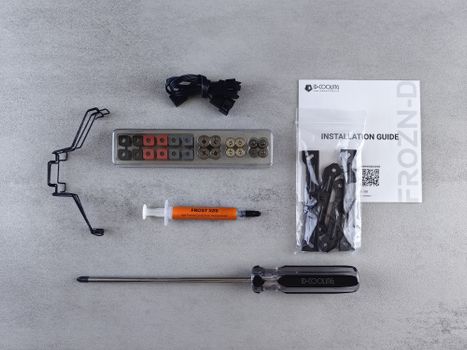
Flat lay of computer cooling hardware kit with installation guide and tools.Photo: Andrey Matveev / Pexels
Assembling your gaming PC might seem daunting, but by breaking it down into manageable steps, it becomes an exciting and rewarding process. Always start by preparing your workspace; a clean, static-free surface is crucial. Unpack your motherboard and begin by installing the CPU. Carefully align the CPU with the socket's notch and gently lower it into place, securing the retention arm. Next, install your CPU cooler. If it's an air cooler, apply thermal paste (if not pre-applied) and mount it firmly. For AIO liquid coolers, mount the pump to the CPU and the radiator to your case later. Following this, install your RAM sticks into the appropriate slots on the motherboard, ensuring they click into place. If you have an M.2 NVMe SSD, now is the time to install it directly onto the motherboard's M.2 slot, securing it with a small screw. With these core components installed, you can now mount the motherboard into your PC case. Secure it with the standoffs and screws provided with the case. Next comes the graphics card. Locate the PCIe x16 slot on your motherboard, remove any necessary expansion slot covers from the case, and firmly press the GPU into the slot until it clicks. Secure it with a screw. Now, install your power supply unit (PSU) into its designated bay, usually at the bottom of the case. Begin connecting the power cables: the 24-pin ATX power to the motherboard, the 8-pin (or 4+4-pin) EPS power to the CPU, and the PCIe power cables to your graphics card. Connect any SATA power cables for additional SSDs/HDDs. Finally, connect the front panel connectors from your case (power button, USB ports, audio jacks) to their respective headers on the motherboard. This step requires careful attention to your motherboard manual. Once all hardware is connected, it’s time to perform an initial boot-up to ensure everything powers on before closing up the case. Understanding PC case airflow can optimize your system's cooling performance.

Software Setup & Optimization: Unleashing Your PC's Potential
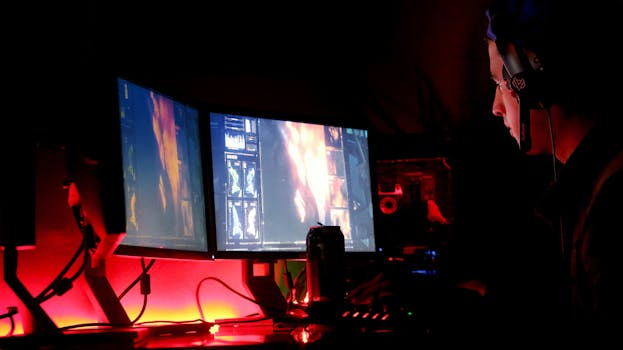
A man intensely focused on multiple computer monitors in a dimly lit room, illustrating high-tech work environment.Photo: Suliman Sallehi / Pexels
Building the hardware is only half the battle; the software setup is equally crucial for unleashing your gaming PC's full potential. The first step after successfully assembling your PC is to install an operating system. For most gamers, this means Windows (Windows 10 or 11). You'll typically create a bootable USB drive with the Windows installer and boot from it to install the OS onto your primary SSD. Once Windows is installed, the next critical phase involves installing all necessary drivers for your components. These drivers are specific software programs that allow your operating system to communicate effectively with your hardware, such as your graphics card, motherboard chipset, network adapter, and audio device. You can usually find the latest drivers on the manufacturers' websites (e.g., NVIDIA/AMD for GPU, Intel/AMD for chipset, motherboard manufacturer for other peripherals). Installing these drivers is paramount for stability and optimal performance, especially for your GPU, which directly impacts gaming frame rates. After driver installation, it's time for optimization. This includes updating Windows to the latest version, which often brings performance improvements and security patches. Consider disabling unnecessary startup programs to free up system resources. For gaming, ensure your graphics card settings are optimized. NVIDIA's Control Panel or AMD's Radeon Software allows you to fine-tune settings like resolution scaling, anti-aliasing, and V-Sync. Regularly monitoring your PC's temperatures (CPU and GPU) using software like HWMonitor or MSI Afterburner is also a good practice to ensure components are running within safe limits. Investing in a good antivirus solution is also important, even for a gaming PC. Finally, consider installing a gaming client like Steam, Epic Games Launcher, or GOG Galaxy to start building your game library. Don't forget to regularly clean dust from your PC and update drivers for sustained performance. Tips for Optimization: * **Keep Drivers Updated:** Always use the latest graphics drivers from NVIDIA or AMD. * **Monitor Temperatures:** Use software to keep an eye on CPU and GPU temps. * **Manage Startup Programs:** Disable unnecessary apps from launching with Windows. * **Enable XMP/DOCP:** Activate this RAM profile in your BIOS for advertised speeds. * **Overclock Safely (Advanced):** If comfortable, gentle CPU/GPU overclocking can yield performance gains, but research thoroughly. * **Cable Management:** Improves airflow and aesthetics, contributing to better cooling. * **Regular Cleaning:** Dust can accumulate quickly and hinder cooling performance.

Comparison

FeatureDIY Gaming PCPre-built Gaming PCGaming Laptop
Cost-EffectivenessHigh (better components for price)Medium (markup for assembly)Low (premium for portability)
CustomizationExcellent (full choice of parts)Limited (pre-selected configurations)Very Limited (fixed components)
UpgradeabilityHigh (modular components)Medium (some parts upgradable)Low (CPU/GPU often soldered)
Performance/PriceBest (optimized for your needs)Good (convenient but less value)Varies (compromises for form factor)
Assembly Required
Portability

What Our Readers Say

5 ★★★★★

"This guide made me confident enough to finally build my first gaming PC. The step-by-step instructions were incredibly clear, and I now have a machine that outperforms anything I could have bought pre-built for the same money. Highly recommend!"

5 ★★★★★

"I was intimidated by the idea of building a PC, but this article broke it down perfectly. I saved hundreds and learned so much in the process. My new rig runs all my games flawlessly."

5 ★★★★★

"Following this guide, I built a beast of a machine that gets incredible frame rates in Cyberpunk 2077. The tips on component selection and driver installation were particularly helpful. My old PC can't compare."

4 ★★★★☆

"The guide was very comprehensive, though I did need to watch a few YouTube videos for the fiddly front panel connectors. Overall, a fantastic resource that helped me achieve a high-performance custom build."

5 ★★★★★

"As someone who uses their PC for both gaming and video editing, the ability to custom-pick components for both needs was a game-changer. This guide empowered me to create the perfect workstation/gaming rig."

Frequently Asked Questions

Is building a gaming PC difficult for beginners?
While it requires patience and attention to detail, building a gaming PC is very achievable for beginners with the right guidance. Modern components are designed to be user-friendly, and there are countless resources, like this guide, to walk you through each step. The satisfaction of building your own machine is immense.
Will I save money by building my own gaming PC?
Generally, yes. By building your own PC, you avoid the markup associated with pre-built systems, allowing you to get better components for your budget or achieve similar performance for less money. Component sales and careful shopping can further maximize your savings.
How do I choose compatible components for my gaming PC?
Component compatibility is crucial. Start by selecting your CPU and motherboard, ensuring the CPU socket type matches. Then, choose RAM compatible with your motherboard's DDR generation and speed. Your power supply must have enough wattage for all components, especially your graphics card. Online tools like PCPartPicker can help verify compatibility.
What is a reasonable budget for building a gaming PC?
A reasonable budget for a capable gaming PC can range from $800 to $1500 for a solid mid-range system, not including peripherals. High-end builds can easily exceed $2000. It's important to set a budget first and then allocate funds to components that offer the best performance for your specific gaming needs.
Is a pre-built gaming PC ever a better option?
Pre-built gaming PCs can be a better option if you prioritize convenience, immediate use, or a comprehensive warranty from a single manufacturer. They are also suitable for those who simply don't have the time or interest in the building process. However, you often pay a premium for these benefits.
Who should consider building their own gaming PC?
Anyone looking for maximum control over component selection, better value for money, the ability to easily upgrade in the future, or simply the rewarding experience of a DIY project should consider building their own gaming PC. It's a great path for enthusiasts and budget-conscious gamers alike.
Are there any risks involved in building a gaming PC?
The primary risks involve static electricity damaging components (easily mitigated with an anti-static wrist strap), incorrect component installation, or improper cable connections. However, by following instructions carefully and exercising patience, these risks are minimal. Most components have built-in safeguards.
What future trends should I consider when building a gaming PC?
Look for future-proofing elements like PCIe 5.0 compatibility on your motherboard for next-gen SSDs and GPUs, ample RAM (16GB minimum, 32GB for longevity), and a power supply with sufficient headroom for potential upgrades. Also, consider cases with good airflow to accommodate increasingly powerful and hotter components.

Ready to stop dreaming and start playing? This comprehensive guide has equipped you with the knowledge and confidence to build your very own gaming PC. Dive into the rewarding world of DIY computing and experience gaming like never before.

Topics: how to build a gaming PCDIY PC buildgaming computer assemblyPC building guidecustom gaming PC