✓ Building your own gaming PC can save you money compared to pre-built systems.
✓ Customizing your PC ensures it meets your exact performance and aesthetic needs.
✓ The process is easier than you think with the right guidance and patience.
✓ Understanding each component's role is crucial for optimal performance.
How It Works
1
Plan Your Build & Gather Components
Research and select compatible components based on your budget and desired performance. Ensure all parts are acquired before starting assembly.
2
Assemble Core Components
Install the CPU, cooler, RAM, and M.2 SSD onto the motherboard outside the case. This makes initial assembly much easier.
3
Mount in Case & Connect Power
Secure the assembled motherboard, graphics card, and storage drives into the PC case. Connect all necessary power cables from the PSU to the components.
4
Install OS & Drivers
Boot your new PC, install your operating system (e.g., Windows), and then download and install all relevant drivers for your components, especially the GPU.
Understanding Gaming PC Components: The Foundation of Your Build
Photo: Gibson Chan / Pexels
Embarking on the journey of how to build a gaming PC starts with a thorough understanding of its core components. Think of each part as a vital organ in a sophisticated machine, working in concert to deliver the high-performance gaming experience you crave. This foundational knowledge not only empowers you to make informed purchasing decisions but also simplifies the assembly process, making it less daunting and more enjoyable. Let's break down the essential components and their roles in your custom gaming rig.
First and foremost, we have the **Central Processing Unit (CPU)**, often referred to as the 'brain' of your computer. For gaming, a powerful CPU is crucial for handling game logic, physics, and AI. Brands like Intel (i5, i7, i9 series) and AMD (Ryzen 5, 7, 9 series) offer a wide range of processors. When choosing, consider the core count, clock speed, and cache size. For most modern gaming, a 6-core or 8-core CPU with a high boost clock speed offers an excellent balance of performance and value. It's important to note that the CPU you choose dictates the type of motherboard you'll need, as different CPUs require specific sockets (e.g., Intel's LGA 1700 or AMD's AM5).
Next up is the **Graphics Processing Unit (GPU)**, arguably the single most important component for a gaming PC. The GPU is responsible for rendering all the visuals you see on your screen, from detailed environments to fluid animations. Companies like NVIDIA (GeForce RTX series) and AMD (Radeon RX series) dominate the market. When selecting a GPU, look at its VRAM (Video Random Access Memory), clock speed, and the number of CUDA cores (NVIDIA) or Stream Processors (AMD). A higher-end GPU will allow you to play games at higher resolutions (1440p, 4K) and frame rates, offering a more immersive experience. This is where a significant portion of your budget will likely be allocated, and for good reason – it directly impacts your gaming fidelity. Investing in a good GPU is paramount for a truly satisfying gaming experience. You can find more insights on choosing the right GPU for your needs by checking out this comprehensive graphics card guide.
The **Motherboard** acts as the central nervous system, connecting all your components. It features the CPU socket, RAM slots, PCIe slots for your GPU and other expansion cards, and various ports for storage drives and peripherals. Compatibility is key here; ensure your chosen motherboard supports your CPU's socket, RAM type (DDR4 or DDR5), and has enough PCIe lanes for your GPU. Chipset features also vary, offering different levels of connectivity, overclocking capabilities, and M.2 SSD slots. Brands like ASUS, MSI, Gigabyte, and ASRock are popular choices, each offering a range of models for different budgets and feature sets.
**Random Access Memory (RAM)** is your system's short-term memory, used to store data that the CPU needs quick access to. For gaming, 16GB of RAM is generally considered the sweet spot, allowing most modern games to run smoothly. Enthusiasts or those who multitask heavily might opt for 32GB. When choosing RAM, pay attention to its speed (MHz) and latency (CL timing). Faster RAM can provide a marginal performance boost, especially with AMD Ryzen CPUs. Remember to purchase RAM in matched pairs (e.g., 2x8GB) to enable dual-channel memory, which significantly improves performance.
For **Storage**, you'll typically want a combination of a fast Solid State Drive (SSD) for your operating system and frequently played games, and potentially a larger Hard Disk Drive (HDD) for mass storage of less critical files. NVMe M.2 SSDs are the fastest option available, connecting directly to the motherboard's PCIe lanes, offering blazing-fast load times. SATA SSDs are also excellent, much faster than HDDs, and more affordable. HDDs still offer the best cost-per-gigabyte for large data archives. A common setup is a 500GB-1TB NVMe SSD for Windows and primary games, coupled with a 2TB+ HDD or a larger SATA SSD for secondary games and media.
Finally, the **Power Supply Unit (PSU)** is responsible for delivering power to all your components. It's crucial not to skimp on the PSU. An unreliable or underpowered PSU can lead to system instability or even damage components. Calculate your system's total wattage requirements (online PSU calculators are very helpful) and choose a PSU with a sufficient wattage rating, plus a little headroom for future upgrades. Look for PSUs with an 80 Plus certification (Bronze, Gold, Platinum, Titanium), which indicates energy efficiency. Modular or semi-modular PSUs are also highly recommended for easier cable management, making your build look cleaner and improving airflow within the case. Understanding these components is the first and most critical step in successfully building your own gaming PC. Each decision impacts the others, forming a cohesive and powerful system tailored to your gaming desires.
Step-by-Step Assembly: Bringing Your Gaming PC to Life
Photo: Anete Lusina / Pexels
With your carefully selected components in hand, the exciting part begins: assembly. Building a gaming PC is a rewarding process that, while requiring patience and attention to detail, is well within the capabilities of most tech enthusiasts. Follow these steps meticulously, and you'll have your custom rig up and running in no time.
**1. Prepare Your Workspace:** Before you even unbox your components, ensure you have a clean, well-lit, and spacious work area. A large, static-free surface like a wooden table is ideal. Use an anti-static wrist strap connected to a grounded metal object (like your PC case or PSU) to prevent electrostatic discharge, which can damage sensitive components. Gather your tools: a Phillips head screwdriver (magnetic tip is a bonus), zip ties or Velcro straps for cable management, and perhaps a small bowl for screws.
**2. Install the CPU on the Motherboard:** This is often the most nerve-wracking step, but it's straightforward. Carefully open the CPU socket lever on your motherboard. Align the triangular arrow on your CPU with the corresponding arrow on the socket. Gently place the CPU into the socket; it should drop in without force. If it doesn't, recheck the alignment. Once seated, close the lever to secure it. Do not force the CPU into the socket as this can bend pins and render it unusable.
**3. Install the CPU Cooler:** If you're using a stock cooler, it usually comes with pre-applied thermal paste. For aftermarket coolers, you'll need to apply thermal paste (a pea-sized dot in the center of the CPU is sufficient). Follow your cooler's specific instructions for mounting. This typically involves placing the cooler onto the CPU and securing it with screws or clips. Ensure even pressure and connect the cooler's fan cable to the 'CPU_FAN' header on the motherboard.
**4. Install RAM:** Locate the RAM slots on your motherboard. Open the clips on both ends of the slots. Align the notch on your RAM sticks with the notch in the slot. Press down firmly and evenly on both ends of the RAM stick until the clips snap into place. If you have two sticks, consult your motherboard manual for the correct slots to enable dual-channel memory (usually alternating slots, e.g., 2nd and 4th).
**5. Install M.2 SSD (if applicable):** If you have an M.2 NVMe SSD, locate the M.2 slot(s) on your motherboard. Remove the small screw and standoff if present. Insert the M.2 drive at a slight angle into the slot, then gently push it down and secure it with the screw. Some motherboards come with a heatsink for the M.2 drive, which you'll install over it.
**6. Mount the Motherboard in the Case:** Install the I/O shield (if not pre-attached to the motherboard) into the back of your PC case. Install the standoffs in your case that align with the screw holes on your motherboard. Carefully lower the motherboard into the case, aligning it with the standoffs and the I/O shield. Secure the motherboard with screws, but do not overtighten.
**7. Install the Graphics Card (GPU):** Locate the primary PCIe x16 slot on your motherboard (usually the top-most long slot). Remove the corresponding PCIe slot cover(s) from the back of your case. Open the retention clip at the end of the PCIe slot. Align your GPU with the slot and press down firmly until it clicks into place and the retention clip snaps shut. Secure the GPU to the case with screws. Connect the necessary PCIe power cables from your PSU to the GPU.
**8. Install Additional Storage Drives (SATA SSDs/HDDs):** Mount your 2.5-inch SATA SSDs or 3.5-inch HDDs into the drive bays of your case. These typically slide into caddies or screw directly into mounting points. Connect a SATA data cable from each drive to a SATA port on your motherboard, and connect a SATA power cable from your PSU to each drive.
**9. Connect Power Supply Unit (PSU) Cables:** Install your PSU into its designated bay in the case (usually at the bottom). Connect the large 24-pin ATX power cable to the motherboard, the 8-pin (or 4+4-pin) CPU power cable to the top-left of the motherboard, and the PCIe power cables to your GPU. Connect SATA power cables to your storage drives. If using a modular PSU, only connect the cables you need.
**10. Connect Case Cables:** This step involves connecting the front panel connectors from your case to the motherboard. These include power button, reset button, USB ports, audio jacks, and front panel LEDs. Refer to your motherboard manual for the correct pin alignment, as these are often small and can be tricky. Also, connect any case fan cables to appropriate 'FAN' headers on the motherboard.
**11. Cable Management:** This is where you tidy up. Use zip ties or Velcro straps to bundle cables and route them behind the motherboard tray or along the case's edges. Good cable management improves airflow, making your system cooler and quieter, and makes future upgrades easier.
**12. Initial Boot and BIOS Setup:** Connect your monitor, keyboard, and mouse. Power on your PC. It should boot into the BIOS/UEFI. Here, you'll want to enable XMP/DOCP for your RAM (to run it at its advertised speed), ensure your boot drive is recognized, and check temperatures. Save and exit.
**13. Install Operating System and Drivers:** Insert your Windows (or other OS) installation media (USB drive). Follow the on-screen prompts to install your operating system. Once installed, download and install the latest drivers for your motherboard chipset, GPU (from NVIDIA or AMD's website), and any other peripherals. This is crucial for optimal performance and stability. Congratulations! You've successfully built your gaming PC. Now, it's time to install your favorite games and enjoy the fruits of your labor.
Optimizing Your Gaming PC: Software, Settings, and Maintenance
Photo: Ron Lach / Pexels
Building your gaming PC is just the first step; optimizing it ensures you get the most out of your hardware investment. This involves a combination of software configurations, in-game settings adjustments, and regular maintenance practices to keep your system running smoothly and efficiently. A well-optimized PC translates to higher frame rates, lower latency, and a more enjoyable gaming experience. This proactive approach will extend the life of your components and prevent frustrating performance bottlenecks. For a deeper dive into system optimization, consider exploring resources like advanced PC tuning guides.
**Software Optimization:**
* **Operating System Updates:** Always keep your Windows OS up to date. Microsoft frequently releases performance enhancements, security patches, and driver updates that can directly impact gaming. Navigate to 'Settings > Update & Security > Windows Update' to check for and install updates.
* **Graphics Drivers:** This is perhaps the most critical software optimization for gaming. NVIDIA and AMD regularly release new GPU drivers that include game-specific optimizations, bug fixes, and performance improvements. Download the latest drivers directly from the manufacturer's website. Use tools like NVIDIA GeForce Experience or AMD Radeon Software to manage and install these updates easily. Make sure to perform a clean installation of drivers to avoid conflicts.
* **DirectX and Visual C++ Redistributables:** Many games rely on specific versions of DirectX and Visual C++ Redistributables. Ensure these are up to date. Windows Update usually handles DirectX, but you might need to install Visual C++ packages manually if a game requires them.
* **Disable Unnecessary Startup Programs:** Background applications consume CPU, RAM, and GPU resources. Use Task Manager (Ctrl+Shift+Esc) to disable programs from launching at startup that you don't immediately need. This frees up resources for your games.
* **Game Mode (Windows):** Windows 10/11 includes a 'Game Mode' feature (Settings > Gaming > Game Mode) that optimizes your PC for gaming by prioritizing game processes. Ensure this is enabled.
* **Overclocking (Optional):** For advanced users, carefully overclocking your CPU, GPU, or RAM can yield significant performance gains. However, this requires careful research, monitoring, and can void warranties if done improperly. Start with small increments and thoroughly stress-test your system.
**In-Game Settings Adjustments:**
* **Resolution:** This has the biggest impact on performance. Playing at your monitor's native resolution is ideal, but if frame rates are too low, consider lowering it or using resolution scaling features if available.
* **Graphics Quality Presets:** Most games offer presets like 'Low,' 'Medium,' 'High,' and 'Ultra.' Start with a preset that balances visual fidelity with your target frame rate, then fine-tune individual settings.
* **Anti-Aliasing:** Reduces jagged edges but can be very demanding. Try different methods (FXAA, TAA, MSAA) or lower its intensity if performance suffers.
* **Shadows and Reflections:** These are often very resource-intensive. Lowering their quality can significantly boost frame rates without a drastic visual impact.
* **Texture Quality:** Primarily uses VRAM. If your GPU has ample VRAM (e.g., 8GB+), you can usually set this high. If you're VRAM limited, lowering it can help.
* **Draw Distance/LOD (Level of Detail):** Affects how far objects are rendered and their detail. Lowering these can improve performance in open-world games.
* **V-Sync/G-Sync/FreeSync:** V-Sync synchronizes your frame rate with your monitor's refresh rate to prevent screen tearing, but can introduce input lag. G-Sync and FreeSync are adaptive sync technologies that offer the best of both worlds, eliminating tearing without significant input lag, provided you have a compatible monitor and GPU. Enable these if you have them.
**Regular Maintenance:**
* **Dust Cleaning:** Dust is the enemy of electronics. It accumulates in fans and heatsinks, impeding airflow and causing components to overheat, which leads to thermal throttling and reduced performance. Use compressed air to regularly clean out dust from your CPU cooler, GPU heatsink, and case fans. Do this every 3-6 months, or more frequently if you live in a dusty environment.
* **Thermal Paste Check:** After a few years, thermal paste on your CPU can dry out, reducing its effectiveness. If CPU temperatures start to climb, reapplying fresh thermal paste can significantly improve cooling performance.
* **Cable Management:** While initially done for aesthetics and airflow, revisit your cable management periodically. Ensure cables aren't blocking airflow or interfering with fan blades. Proper airflow is crucial for maintaining optimal temperatures.
* **Storage Management:** Keep your primary drive (where your OS and games are installed) from getting too full. Aim to keep at least 15-20% free space for optimal performance. Regularly uninstall games or programs you no longer use. Consider using Windows' Disk Cleanup tool.
* **Malware Scans:** Run regular scans with a reputable antivirus/anti-malware program to ensure your system remains clean and secure. Malware can consume system resources and degrade performance.
* **Backup Your Data:** While not directly performance-related, regularly backing up your important game saves and personal files is crucial. Hardware can fail, and you don't want to lose progress or precious data.
By diligently following these optimization and maintenance practices, your gaming PC will not only deliver peak performance for years to come but also provide a more stable and enjoyable gaming experience. Remember, a little effort goes a long way in preserving the longevity and power of your custom-built machine.
Common Pitfalls and Pro Tips for Your First Gaming PC Build
Photo: Tima Miroshnichenko / Pexels
Building your first gaming PC is an exciting endeavor, but it's not without its potential stumbling blocks. Being aware of common pitfalls and equipping yourself with pro tips can save you hours of frustration, prevent costly mistakes, and ensure a smooth, successful build. Even experienced builders encounter unexpected issues, so patience and a systematic approach are your best allies.
**Common Pitfalls to Avoid:**
* **Component Incompatibility:** This is perhaps the most common rookie mistake. Ensure your CPU socket matches your motherboard, your RAM type (DDR4 vs. DDR5) is supported, and your PSU has enough wattage and the correct connectors for your GPU and other components. Tools like PCPartPicker.com are invaluable for checking compatibility before purchasing. Neglecting this step can lead to a non-booting system or damaged parts.
* **Forcing Components:** If a component doesn't fit easily, *do not force it*. This is especially true for the CPU, RAM, and GPU. Re-check alignment, consult your manual, and ensure you've opened any necessary retention clips or levers. Forcing can bend pins on your CPU or motherboard, or damage RAM slots or PCIe connectors.
* **Forgetting the I/O Shield:** This small metal plate goes into the back of your case *before* you install the motherboard. It provides ports for your peripherals and helps with airflow. It's a minor detail but a common oversight that requires partially disassembling your build to correct.
* **Improper Thermal Paste Application:** Too much, too little, or uneven application of thermal paste can lead to poor CPU cooling and thermal throttling. A pea-sized dot in the center of the CPU is generally sufficient for most applications. Ensure the CPU cooler makes firm, even contact.
* **Loose or Unconnected Cables:** Double-check every power cable (24-pin ATX, 8-pin CPU, PCIe to GPU, SATA power) and data cable (SATA data, M.2) connection. Also, ensure all front panel connectors (power, reset, USB, audio) are correctly seated on the motherboard according to your manual. A loose connection is a frequent cause of a PC not booting.
* **Ignoring Static Electricity:** Electrostatic discharge (ESD) can fry sensitive components without you even feeling a shock. Always use an anti-static wrist strap, work on a non-conductive surface, and touch a grounded metal object periodically.
* **Not Installing Drivers:** After installing your OS, your PC might function, but it won't perform optimally without proper drivers, especially for your GPU and motherboard chipset. Always download the latest drivers from the manufacturers' websites.
* **Poor Cable Management:** While primarily aesthetic, bad cable management can hinder airflow, leading to higher temperatures and potentially reduced component lifespan. It also makes future upgrades or troubleshooting more difficult.
**Pro Tips for a Successful Build:**
* **Read Your Manuals:** This cannot be stressed enough. Your motherboard and case manuals contain crucial information about component placement, connector locations, and specific installation instructions. Keep them handy throughout the build.
* **Watch Build Guides:** Supplement written instructions with video guides. Watching an experienced builder assemble a PC can provide visual clarity and confidence, especially for tricky steps like CPU installation or front panel connectors.
* **Test Components Outside the Case (Bench Testing):** Before fully mounting everything, perform a basic test. Install the CPU, cooler, RAM, and M.2 SSD onto the motherboard. Connect the PSU and a monitor. Power it on to ensure it posts (displays something on the screen) and enters the BIOS. This helps isolate problems to specific components before the full build.
* **Organize Your Screws:** Cases come with various types of screws. Keep them organized in labeled compartments or small dishes to avoid confusion during assembly.
* **Don't Rush:** Take your time. Building a PC is a marathon, not a sprint. Rushing leads to mistakes. If you get frustrated, take a break and come back with a fresh perspective.
* **Troubleshooting Strategy:** If your PC doesn't boot, stay calm. Start with the most common issues: check all power cables, RAM seating, and GPU seating. Refer to your motherboard's debug LEDs or error codes if available. Disconnect non-essential components and try booting with just the CPU, RAM, and GPU.
* **Prepare Your OS Installation Media in Advance:** Have your Windows installation USB drive ready before you start building. This saves time and ensures you're ready to go once the hardware is assembled.
* **Utilize Online Resources:** Forums like Reddit's r/buildapc, tech websites, and manufacturer support pages are invaluable resources if you encounter problems. Don't hesitate to ask for help.
By keeping these pitfalls in mind and leveraging these pro tips, your first gaming PC build will likely be a smooth and incredibly satisfying experience. The sense of accomplishment from building your own high-performance machine is truly unparalleled.
Comparison
Feature
High-End Build
Mid-Range Build
Budget Build
CPU
Intel Core i9 / AMD Ryzen 9
Intel Core i7 / AMD Ryzen 7
Intel Core i5 / AMD Ryzen 5
GPU
NVIDIA RTX 4080/4090 / AMD RX 7900 XTX
NVIDIA RTX 4070/4070 Ti / AMD RX 7800 XT
NVIDIA RTX 4060 / AMD RX 6600/7600
RAM
32GB DDR5 @ 6000MHz+
16GB DDR4/DDR5 @ 3200MHz+
16GB DDR4 @ 3200MHz
Storage
2TB NVMe SSD + 4TB HDD
1TB NVMe SSD
500GB NVMe SSD
Cooling
AIO Liquid Cooler
High-End Air Cooler
Stock/Basic Air Cooler
Target Resolution
4K Ultra Settings
1440p High/Ultra
1080p High/Medium
Estimated Cost (USD)
$2000+
$1200 - $2000
$600 - $1200
What Readers Say
★★★★★
"This guide made building my first gaming PC incredibly straightforward. I was intimidated, but the detailed steps for how to build a gaming PC walked me through everything, and I got it right on the first try!"
Alex R. · Austin, TX
★★★★★
"The component breakdown was super helpful for understanding what I needed. My new custom gaming PC runs all my favorite titles flawlessly, and I saved a ton of money compared to buying pre-built."
Sarah J. · Orlando, FL
★★★★★
"I followed the optimization tips to the letter, and my frame rates are consistently high. Building my own PC gave me a powerful machine that exceeded my expectations for performance and value."
Mike D. · Seattle, WA
★★★★★
"While most steps were clear, the front panel connectors were a bit fiddly. However, the troubleshooting section quickly helped me resolve it, and now I have a fantastic gaming rig."
Emily C. · Denver, CO
★★★★★
"As someone who uses their PC for both gaming and video editing, this guide helped me choose components that excel at both. My render times are significantly faster, and games look amazing."
Chris P. · Boston, MA
Frequently Asked Questions
Is it really cheaper to build a gaming PC than to buy a pre-built one?
Generally, yes. Building your own gaming PC often allows you to get better components for your money, avoid unnecessary bloatware, and customize it precisely to your needs. While some sales on pre-builts can be competitive, the value and control you gain by building are usually superior, especially in the mid-to-high-end spectrum.
I'm worried about breaking components. How fragile are they?
While components are delicate, they are not as fragile as you might think. Most are designed to withstand reasonable handling. The key is to be gentle, avoid static electricity by using an anti-static wrist strap, and never force anything. Take your time, follow instructions, and you'll minimize any risks.
How long does it take to build a gaming PC for a first-timer?
For a first-timer, expect to spend anywhere from 3 to 6 hours on the physical assembly. This doesn't include the time spent researching components or installing the operating system and drivers, which can add another 2-3 hours. Take breaks, and don't rush the process.
What's the most important component to spend money on for gaming performance?
The Graphics Processing Unit (GPU) is by far the most crucial component for gaming performance. It directly impacts your in-game frame rates and visual fidelity. Allocate the largest portion of your budget to the best GPU you can afford, as it will deliver the most significant improvement to your gaming experience.
Should I choose Intel or AMD for my CPU and GPU?
Both Intel and AMD offer excellent CPUs and GPUs, and the choice often comes down to budget, specific performance needs, and personal preference. Intel generally excels in raw single-core performance (beneficial for some games), while AMD often offers better multi-core value. For GPUs, NVIDIA typically has a slight edge in ray tracing and DLSS, while AMD's FSR technology is more open. Research current benchmarks for the specific games you play and your budget to make the best decision.
Who should consider building their own gaming PC?
Anyone seeking maximum value, customizability, and a deeper understanding of their technology should consider building their own gaming PC. It's ideal for gamers who want to tailor performance to specific games, enthusiasts who enjoy tinkering, or those looking to save money while getting higher-quality components than many pre-built systems offer.
What are the biggest risks when building a PC?
The biggest risks include damaging components through static electricity, incorrectly installing the CPU or RAM, or improperly connecting power cables, which can prevent the system from booting. However, these risks are significantly mitigated by careful planning, following instructions, and using an anti-static wrist strap.
What are the future trends in gaming PC components?
Future trends include continued advancements in CPU core counts and efficiency, more powerful and efficient GPUs with improved ray tracing and AI upscaling technologies, faster DDR5 RAM becoming standard, and widespread adoption of PCIe 5.0 for even quicker NVMe SSDs and GPU bandwidth. Expect greater integration of AI into hardware for optimized performance.
Ready to elevate your gaming experience? By understanding how to build a gaming PC, you're not just assembling parts; you're crafting a personalized powerhouse. Take the leap, follow this guide, and unlock the unparalleled performance and satisfaction of a custom-built gaming rig today.
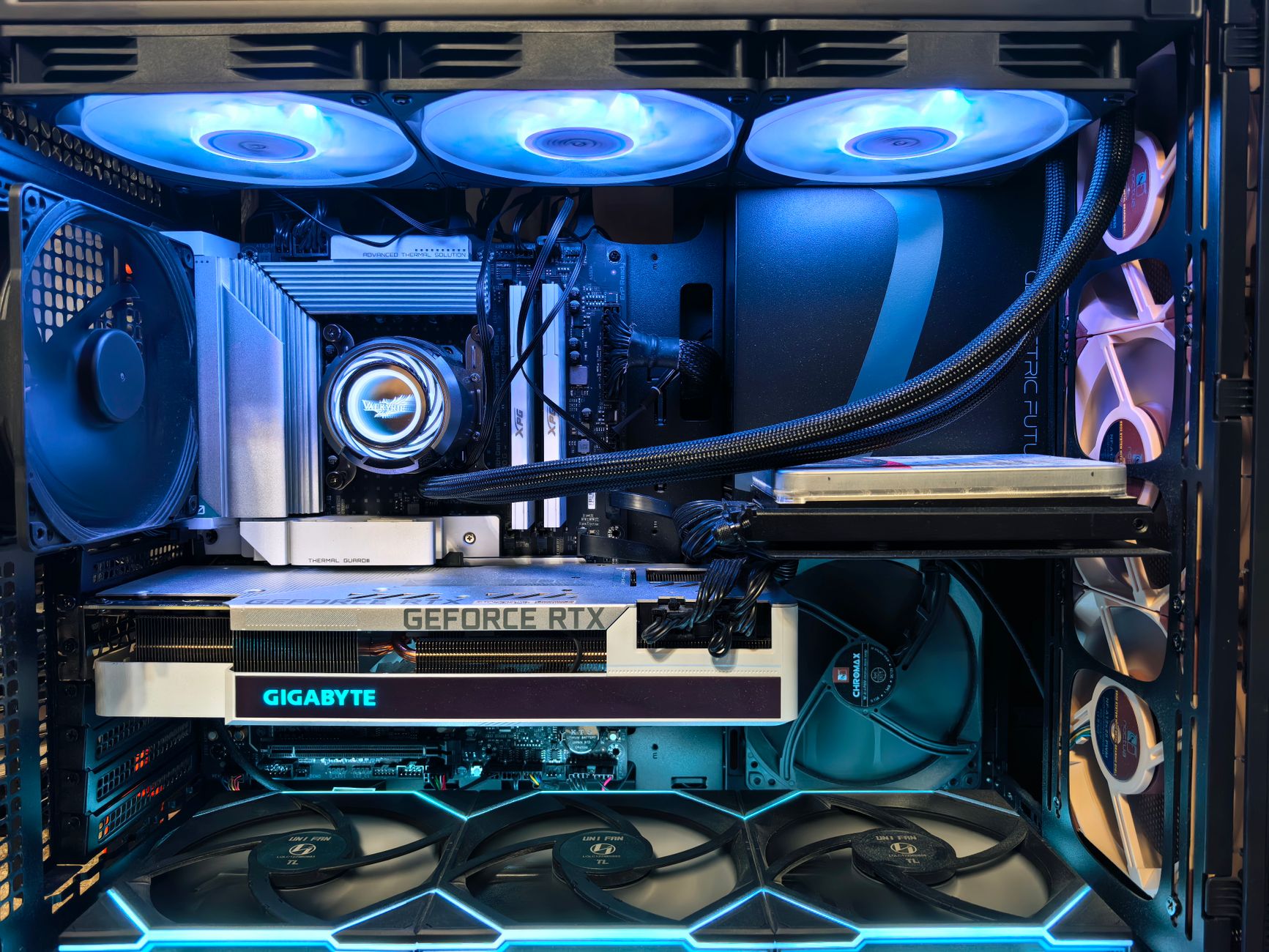
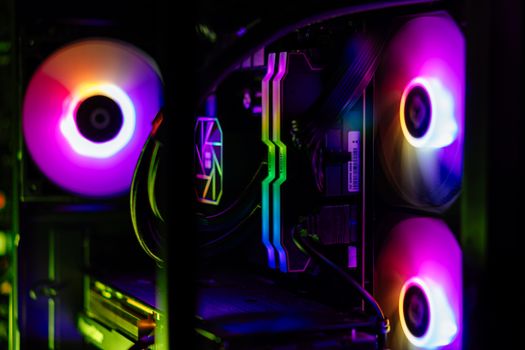 Photo: Gibson Chan / Pexels
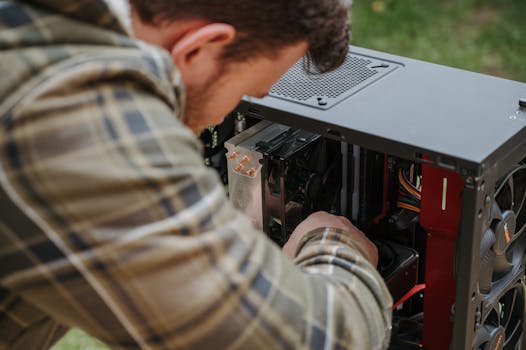 Photo: Anete Lusina / Pexels
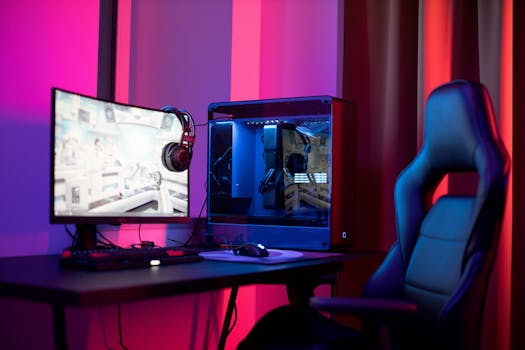 Photo: Ron Lach / Pexels
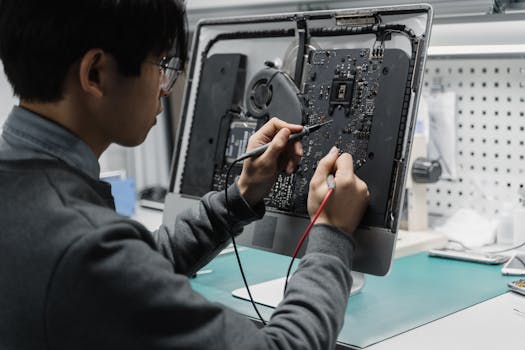 Photo: Tima Miroshnichenko / Pexels