Find the Best External Hard Drive for Mac: Ultimate Guide
best external hard drive for Mac

Find the Best External Hard Drive for Mac: Ultimate Guide

Unlock seamless storage, lightning-fast transfers, and bulletproof backups for your Apple ecosystem.

Explore Top Picks

Key Takeaways

  • ✓ SSDs offer superior speed and durability over HDDs, ideal for active work.
  • ✓ Thunderbolt 3/4 provides the fastest connection for modern Macs.
  • ✓ Compatibility with macOS (APFS/HFS+) is crucial for optimal performance.
  • ✓ Capacity needs vary: 1TB for casual, 4TB+ for professionals.

How It Works

1
Identify Your Needs

Determine your primary use: backup, video editing, gaming, or general storage. This dictates required speed, capacity, and portability.

2
Choose Drive Type

Select between SSD (Solid State Drive) for speed and durability, or HDD (Hard Disk Drive) for maximum capacity at a lower cost per GB.

3
Select Connectivity

Match the drive's port (Thunderbolt, USB-C, USB-A) to your Mac's available ports for optimal data transfer speeds and compatibility.

4
Consider Features

Look for features like ruggedness, encryption, bundled software, and a reputable brand known for Mac compatibility and support.

Why Your Mac Needs an External Hard Drive: Expanding Storage and Beyond

Close-up of a desk setup featuring external hard drives, mouse, and USB stick. Photo: Avinash Kumar / Pexels
Even the most powerful Macs eventually run into storage limitations. Whether you're a creative professional dealing with massive video files, a student juggling countless research papers, or simply someone who loves capturing life's moments in high resolution, internal storage can quickly become a bottleneck. An external hard drive for Mac isn't just about adding more space; it's about unlocking a new level of productivity, data security, and operational flexibility for your Apple device. This foundational piece of hardware serves multiple critical functions, transforming how you interact with your digital world. Firstly, consider the sheer volume of data generated today. 4K video, high-resolution photos, complex software applications, and extensive document libraries can consume gigabytes faster than you can say 'full disk'. Offloading these large files to an external drive frees up crucial space on your Mac's internal SSD, which directly impacts its performance. A crowded internal drive can lead to slower boot times, sluggish application launches, and overall system slowdowns. By maintaining ample free space on your primary drive, you ensure your Mac operates at its peak efficiency, allowing you to focus on your tasks without frustrating delays. This is especially vital for Mac users who opted for lower-capacity internal storage configurations to save on initial purchase costs, only to find themselves needing more room down the line. Beyond simple storage expansion, external drives are indispensable for robust backup strategies. Apple's Time Machine is a fantastic built-in backup solution, but it requires a dedicated external drive to function effectively. Regular backups are not just a recommendation; they are a necessity in an age where data loss can be catastrophic. Hardware failures, accidental deletions, software corruption, or even theft can wipe out years of work or cherished memories in an instant. A reliable external drive, used consistently with Time Machine, provides an invaluable safety net, allowing you to restore your entire system or individual files to a previous state. This peace of mind alone makes the investment in a quality external drive worthwhile. For critical data, a multi-tiered backup approach, perhaps involving a cloud service in addition to a local external drive, offers the ultimate protection. Furthermore, an external hard drive can significantly enhance your workflow by providing a dedicated space for specific projects or applications. For instance, video editors can keep all their project files, raw footage, and scratch disks on a fast external SSD, ensuring smooth playback and rendering without taxing the internal drive. Musicians can store vast sample libraries or virtual instruments, accessing them quickly as needed. This compartmentalization not only improves performance but also helps in organizing your digital assets more effectively. If you work on multiple projects, each requiring a large dataset, having separate external drives for each can streamline your process and prevent data overlap or confusion. It also makes it easier to transport specific project data between different workstations or collaborate with others by simply handing over the drive. The versatility an external drive brings to your Mac's ecosystem is truly transformative, making it an essential accessory for virtually any Mac user looking to optimize their digital life. Understanding different storage types is key to making the right choice.

SSD vs. HDD: Choosing the Right Drive Type for Your Mac

Close-up of a broken hard disk drive showing internal components on a pink background. Photo: Markus Spiske / Pexels
When it comes to selecting the best external hard drive for Mac, the most fundamental decision you'll face is choosing between a Solid State Drive (SSD) and a Hard Disk Drive (HDD). Both have distinct advantages and disadvantages, and the 'best' option depends entirely on your specific needs, budget, and how you intend to use the drive. Understanding these differences is crucial for making an informed purchase that will serve you well for years to come. Solid State Drives (SSDs) are the modern choice, offering unparalleled speed and durability. Unlike HDDs, SSDs have no moving parts. They store data on interconnected flash memory chips, similar to a giant USB stick. This lack of mechanical components translates directly into several key benefits. Firstly, speed: SSDs boast significantly faster read and write speeds, often ranging from 500 MB/s to over 2800 MB/s (for NVMe-based Thunderbolt SSDs). This means applications launch quicker, large files transfer in seconds, and video editing timelines scrub smoothly. For professionals working with large media files, virtual machines, or high-performance gaming, an external SSD is almost a non-negotiable. Secondly, durability: without platters spinning or heads moving, SSDs are far more resistant to physical shock and vibration. Dropping an external SSD is less likely to result in data loss compared to an HDD, making them ideal for portable use or for those who are frequently on the go. They also consume less power, which can be a minor benefit for laptop users. However, the primary drawback of SSDs is their cost per gigabyte. While prices have steadily decreased, SSDs are still considerably more expensive than HDDs for the same storage capacity. Hard Disk Drives (HDDs), on the other hand, are the traditional workhorses of data storage. They consist of spinning platters and read/write heads that move across the platters to access data. Their main advantage lies in their cost-effectiveness and high capacity. For a fraction of the price of an SSD, you can acquire an HDD with several terabytes (TB) of storage, making them an excellent choice for archival storage, Time Machine backups, or storing vast libraries of less frequently accessed files. If your primary need is to store a massive amount of data without requiring lightning-fast access, an HDD offers the best value. However, HDDs are significantly slower than SSDs, with typical speeds ranging from 80 MB/s to 160 MB/s. This can lead to noticeable delays when transferring large files or opening applications directly from the drive. Furthermore, their mechanical nature makes them more susceptible to damage from drops or impacts, and they can generate more heat and noise than SSDs. They are generally less suitable for portable, rugged use cases. In summary, if speed, durability, and portability are your top priorities, and your budget allows, an external SSD is the superior choice for your Mac. It's perfect for active projects, bootable backups, or running demanding applications. If you need vast amounts of storage for backups, archiving, or storing media libraries where access speed isn't critical, and you're working within a tighter budget, an external HDD offers excellent value. Many users find a hybrid approach beneficial, using a fast SSD for active projects and a larger, more affordable HDD for long-term backups and archival storage. Your decision should align with your specific workflow and financial considerations.

Connectivity and Compatibility: Ensuring Seamless Integration with Your Mac

A close-up image of laptop ports highlighting modern technology with striking neon lighting. Photo: Eric Feng / Pexels
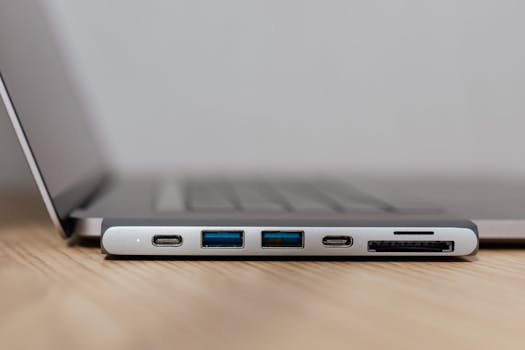
The performance and ease of use of your external hard drive for Mac are heavily influenced by its connectivity options and compatibility with macOS. Even the fastest drive type won't deliver its full potential if it's bottlenecked by a slow connection or if it's not properly formatted for your Apple ecosystem. Understanding the various ports and file systems is paramount to achieving seamless integration and optimal performance. This section delves into the critical aspects of connectivity and compatibility, guiding you to make the right choice for your Mac. Modern Macs primarily utilize Thunderbolt and USB-C ports, with some older models still featuring USB-A. Thunderbolt (specifically Thunderbolt 3 and 4) offers the absolute fastest data transfer speeds available today, often reaching up to 40 Gbps (gigabits per second). This incredible bandwidth is crucial for professionals working with uncompressed 4K/8K video, large scientific datasets, or anyone needing to move massive files quickly. Thunderbolt drives are typically more expensive but provide a future-proof connection that can also daisy-chain multiple devices. USB-C is a versatile connector that supports various protocols, including USB 3.1 Gen 2 (10 Gbps) and USB 3.2 Gen 2x2 (20 Gbps). Many external drives labeled 'USB-C' actually use the USB 3.1 Gen 2 standard, offering excellent speeds that are more than sufficient for most users, including photographers and casual video editors. It's important to note that while a USB-C port on your Mac can accept a Thunderbolt drive, the drive will operate at USB-C speeds unless it's a true Thunderbolt connection. USB-A (the traditional rectangular port) is slower, typically maxing out at 5 Gbps with USB 3.0, but many older Macs and some peripherals still rely on it. If your Mac only has USB-A, you'll need a drive with a USB-A connection or an adapter for USB-C/Thunderbolt drives, which will then operate at the slower USB-A speed. Beyond physical connectivity, file system compatibility is equally critical. Macs primarily use Apple File System (APFS) for SSDs and macOS Extended (HFS+) for HDDs and older systems. While newer Macs can read and write to drives formatted for Windows (NTFS), they cannot write to them without third-party software. For optimal performance, reliability, and seamless integration with macOS features like Time Machine, it's highly recommended to format your external drive to APFS or HFS+. Most external drives come pre-formatted for Windows, so you'll likely need to reformat it using Disk Utility on your Mac. This process is straightforward but will erase all data on the drive, so do it before you start using it. APFS is optimized for SSDs and flash storage, offering features like snapshots and strong encryption, making it the ideal choice for modern external SSDs. HFS+ (Journaled) is a robust choice for external HDDs, especially if you need compatibility with older macOS versions. Some drives also offer exFAT, which is universally compatible with both Mac and Windows, but it lacks the advanced features and robust data integrity of APFS or HFS+. While convenient for cross-platform sharing, it's generally not recommended for your primary Mac backup or storage drive. Finally, consider power delivery. Bus-powered drives draw power directly from your Mac's USB or Thunderbolt port, making them highly portable. Larger capacity HDDs or high-performance SSDs might require external power adapters. Always check the drive's specifications to ensure it meets your power needs and portability requirements. Choosing the right combination of port type, file system, and power delivery ensures your external drive integrates flawlessly with your Mac, providing reliable and fast storage for all your digital needs. Learn more about data transfer speeds to optimize your setup.

Top Picks and Essential Considerations for Your Mac External Drive

Monochromatic close-up of an external hard drive with a USB cable. Photo: Nothing Ahead / Pexels
Navigating the vast market of external hard drives can be daunting, but armed with knowledge about drive types, connectivity, and compatibility, you're ready to explore some of the best options specifically tailored for Mac users. This section highlights top-performing drives and crucial factors to consider before making your final purchase, ensuring you get the most value and functionality for your investment. For those prioritizing speed and portability, the **Samsung T7 Shield Portable SSD** stands out. It's a rugged, bus-powered USB 3.2 Gen 2 (USB-C) drive offering excellent read/write speeds (up to 1,050 MB/s) and IP65-rated dust and water resistance. Available in capacities up to 4TB, it's perfect for photographers, videographers, or anyone needing a durable, fast drive on the go. Another strong contender in the portable SSD category is the **SanDisk Extreme Portable SSD V2**, which offers similar performance and ruggedness, often at a competitive price. For the absolute fastest speeds, especially for demanding professional workflows, a Thunderbolt 3/4 NVMe SSD is unmatched. Drives like the **OWC Envoy Express** (which allows you to install your own NVMe SSD) or pre-built solutions like the **LaCie Mobile Drive SSD** (Thunderbolt/USB 3.2 Gen 2) offer blazing-fast transfer rates, often exceeding 2,000 MB/s, ideal for editing high-resolution video directly from the drive. If maximum capacity and cost-effectiveness are your primary concerns, particularly for Time Machine backups or archival storage, an external HDD is the way to go. The **Western Digital My Passport for Mac** is a popular choice, offering up to 5TB of storage in a compact, bus-powered design, pre-formatted for macOS. Similarly, the **Seagate Backup Plus Slim for Mac** provides reliable performance and ample space, often bundled with useful backup software. For even larger capacities, desktop HDDs like the **Western Digital My Book Duo** or **LaCie d2 Professional** offer up to 28TB or 18TB respectively, often with RAID capabilities for enhanced speed or data redundancy, though they require external power. These are excellent for studio environments or home offices where portability isn't a concern. Beyond specific models, several essential considerations should guide your purchase. **Capacity** is paramount: estimate your current needs and factor in future growth. It's always better to over-estimate slightly. For Time Machine, Apple recommends a drive at least twice the size of your internal storage. **Brand reputation and warranty** are also crucial; reputable brands like Samsung, SanDisk, Western Digital, Seagate, and LaCie generally offer better reliability and customer support. Look for drives with at least a 3-year warranty. **Security features** like hardware encryption are vital if you're storing sensitive data. Some drives include built-in encryption, while others rely on macOS's FileVault. Finally, **design and aesthetics** might seem minor, but for a device that will sit alongside your Mac, a complementary design can be a nice bonus. Many brands offer sleek, aluminum-clad drives that match Apple's aesthetic. By weighing these factors against your budget and specific usage patterns, you can confidently select the best external hard drive for your Mac, ensuring it meets your needs for speed, reliability, and capacity.

Comparison

FeatureSamsung T7 Shield (SSD)WD My Passport for Mac (HDD)OWC Envoy Express (NVMe Enclosure)
TypePortable SSDPortable HDDNVMe SSD (User-supplied)
Max Speed (MB/s)Up to 1,050Up to 130Up to 2,800+ (Thunderbolt 3/4)
ConnectivityUSB-C 3.2 Gen 2USB-A 3.0 (USB-C adapter included)Thunderbolt 3/4
Max Capacity4TB5TB8TB+ (depends on NVMe)
DurabilityIP65 Rated, Drop ResistantStandard, Not RuggedStandard Enclosure
Bus-Powered
Price Range (1TB)$100-$150$60-$80$80 (enclosure only) + SSD cost

What Readers Say

"The Samsung T7 Shield is the best external hard drive for Mac I've ever owned. Transferring huge video files for my editing work is incredibly fast, and I don't worry about it getting damaged when I'm on location. Absolutely essential for creative pros."

Alex P. · Seattle, WA

"I needed a reliable Time Machine backup drive, and the WD My Passport for Mac has been perfect. It's pre-formatted, plug-and-play, and gives me peace of mind knowing all my photos and documents are safe. Great value for the capacity."

Maria G. · Austin, TX

"As a software developer, I run multiple virtual machines, and the OWC Envoy Express with my NVMe SSD has been a game-changer. The Thunderbolt speeds are insane, making my workflow incredibly smooth. It's truly the best external hard drive for Mac performance."

David L. · New York, NY

"The SanDisk Extreme Portable SSD is fantastic for my photography business. It's super fast and rugged, which is great for outdoor shoots. My only minor gripe is the price per TB, but the performance and peace of mind are worth it."

Sarah K. · Denver, CO

"I use my external drive mainly for storing my extensive music library and some casual video projects. The Seagate Backup Plus Slim provides ample space at a great price, and it integrates seamlessly with my MacBook Air. A solid choice for everyday use."

Ethan R. · Miami, FL

Frequently Asked Questions

What is the best external hard drive for Mac for Time Machine backups?

For Time Machine, reliability and capacity are key. A traditional HDD like the Western Digital My Passport for Mac or Seagate Backup Plus Slim offers excellent value for large backups. Ensure it's formatted to APFS or HFS+ (Journaled) for optimal compatibility and performance with macOS. Aim for at least twice the capacity of your Mac's internal drive.

Will an external hard drive slow down my Mac?

No, an external hard drive should not slow down your Mac, especially if it's a fast SSD connected via Thunderbolt or USB-C. In fact, by offloading large files and maintaining free space on your internal drive, an external drive can help your Mac run more efficiently. Only if you're running demanding applications directly from a very slow external HDD might you notice a performance dip.

How do I format an external hard drive for Mac?

To format an external hard drive for Mac, connect it to your Mac, open Disk Utility (found in Applications > Utilities), select the external drive from the sidebar, click 'Erase', choose a name, and select 'APFS' (for SSDs) or 'Mac OS Extended (Journaled)' (for HDDs) as the format and 'GUID Partition Map' as the scheme. Click 'Erase' again to confirm.

Are expensive external hard drives for Mac worth it?

The value of an expensive external drive depends on your needs. High-end SSDs with Thunderbolt connectivity are significantly faster and more durable, making them worth the investment for professionals like video editors or graphic designers who need top performance. For casual users or simple backups, a more affordable HDD or mid-range USB-C SSD offers excellent value without the premium price tag.

Can I use a Windows-formatted external hard drive with my Mac?

Yes, your Mac can read data from a Windows-formatted (NTFS) external hard drive, but it cannot write to it without third-party software. For full read/write access and optimal performance with macOS features like Time Machine, it's highly recommended to reformat the drive to APFS or Mac OS Extended (Journaled) using Disk Utility.

Who should prioritize an external SSD over an HDD for their Mac?

Users who should prioritize an external SSD include creative professionals (video editors, photographers, graphic designers) needing fast access to large files, gamers, anyone running virtual machines, or those who frequently transfer large amounts of data. Also, users who require maximum portability and durability will benefit from an SSD's shock resistance.

Is data encryption important for an external Mac drive?

Yes, data encryption is highly important, especially if you store sensitive personal or professional information on your external drive. If your drive is lost or stolen, encryption prevents unauthorized access to your data. macOS's FileVault can encrypt external drives, or you can choose drives with built-in hardware encryption for an added layer of security.

What are the future trends for external hard drives for Mac?

Future trends point towards faster, higher-capacity, and more compact storage solutions. Expect to see more widespread adoption of Thunderbolt 4 and USB4 for even greater speeds, increased NVMe SSD capacities at lower price points, and further advancements in ruggedness and data security features. Cloud integration will also continue to evolve alongside local storage.

Choosing the best external hard drive for Mac is a crucial decision for enhancing your digital life. Whether you prioritize speed, capacity, or ruggedness, our guide provides the insights needed to make an informed choice. Invest in the right storage solution today to protect your data, boost your productivity, and expand your Mac's capabilities.

Topics: best external hard drive for MacMac storage solutionsexternal SSD MacTime Machine driveportable storage Mac
Leo List
Brampton weed
Adultwork